jason's hyperion blog

essbase from the trenches

More on Dodeca Dynamic Connections: Allowing Users to Select Multiple Connections

Last week I wrote about how you can configure user selectable Essbase connections on a Dodeca view. One of the comments on the blog article was from a Dodeca customer that said, “Hey, that’s great and all, but what about a Dodeca view with multiple Essbase connections?” In other words: Can we setup a Dodeca view that pulls data from multiple user-selectable connections and have data from different connections on the same sheet? The answer is yes – although the configuration is just a tiny bit different than what I thought it would be (it was actually simpler). This blog post will walk through how to set this up.

Specifying Retrieval Connections

The first thing I want to review briefly is how specific connections are defined for retrieval areas. We tend to think of a Dodeca view as having a specific Essbase connection set at design time. But when we need a little more control, up to and including a different connection for every single retrieve range, we can do that too. This is used to great effect at numerous organizations that use Dodeca to pull together data from disparate cubes and even relational databases (all on the same spreadsheet). Whereas we typically define Essbase retrieval ranges such as “Ess.Retrieve.Range.1“, all we need to do to define a specific connection to use is to define another name “Ess.Retrieve.Connection.1” (making sure that the IDs at the end match each other – in this case, the number 1).

Dynamic Retrieval Connections

Normally the connection IDs are static (defined at design time), but that doesn’t have to be the case. In fact, the Dodeca template designer even makes defining these specific retrieval connections even easier by giving us a bespoke GUI for defining them:
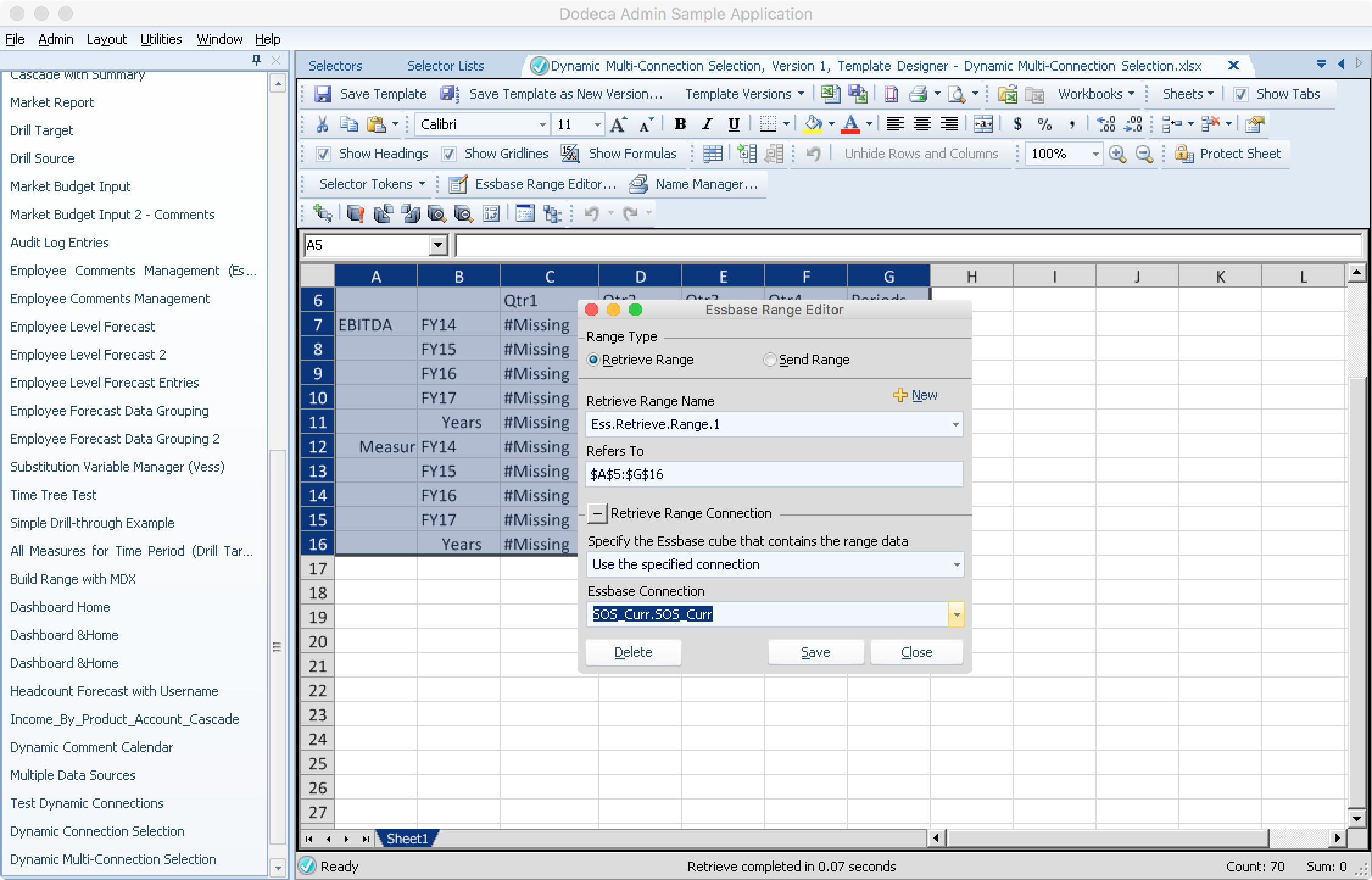
Dodeca Essbase Range Editor defining a specific retrieval connection

Defining a Dodeca Essbase retrieve range that will use a specific connection

In the preceding example you can see that I have the retrieve range, and then I chose “Use the specified connection”, which then allowed me to choose one of the Essbase Connection objects that has been defined.

Now, in order to allow my user to choose a connection, I’m going to need to create the appropriate selectors and selector lists. Let’s go ahead and create two new selectors, named SOS_Conn1 and SOS_Conn2:
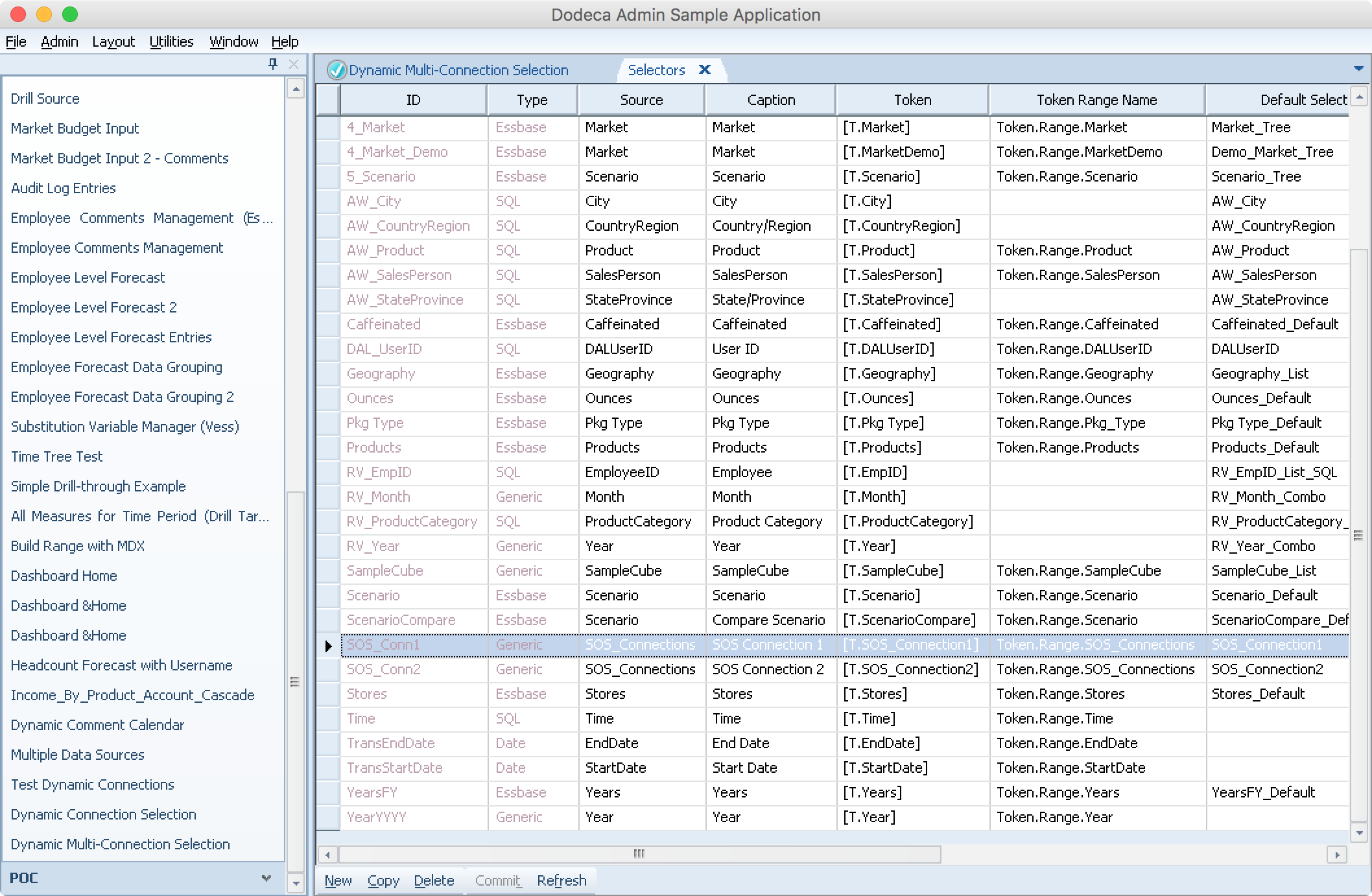
Dodeca Selector editor defining new selectors for dynamic connections

Creating selectors for the different connections we will choose dynamically

Also notice that each selector has it’s own token: [T.SOS_Connection1] and [T.SOS_Connection2], respectively. Now to define the selector lists for these. I’ll just show one since they are the same:
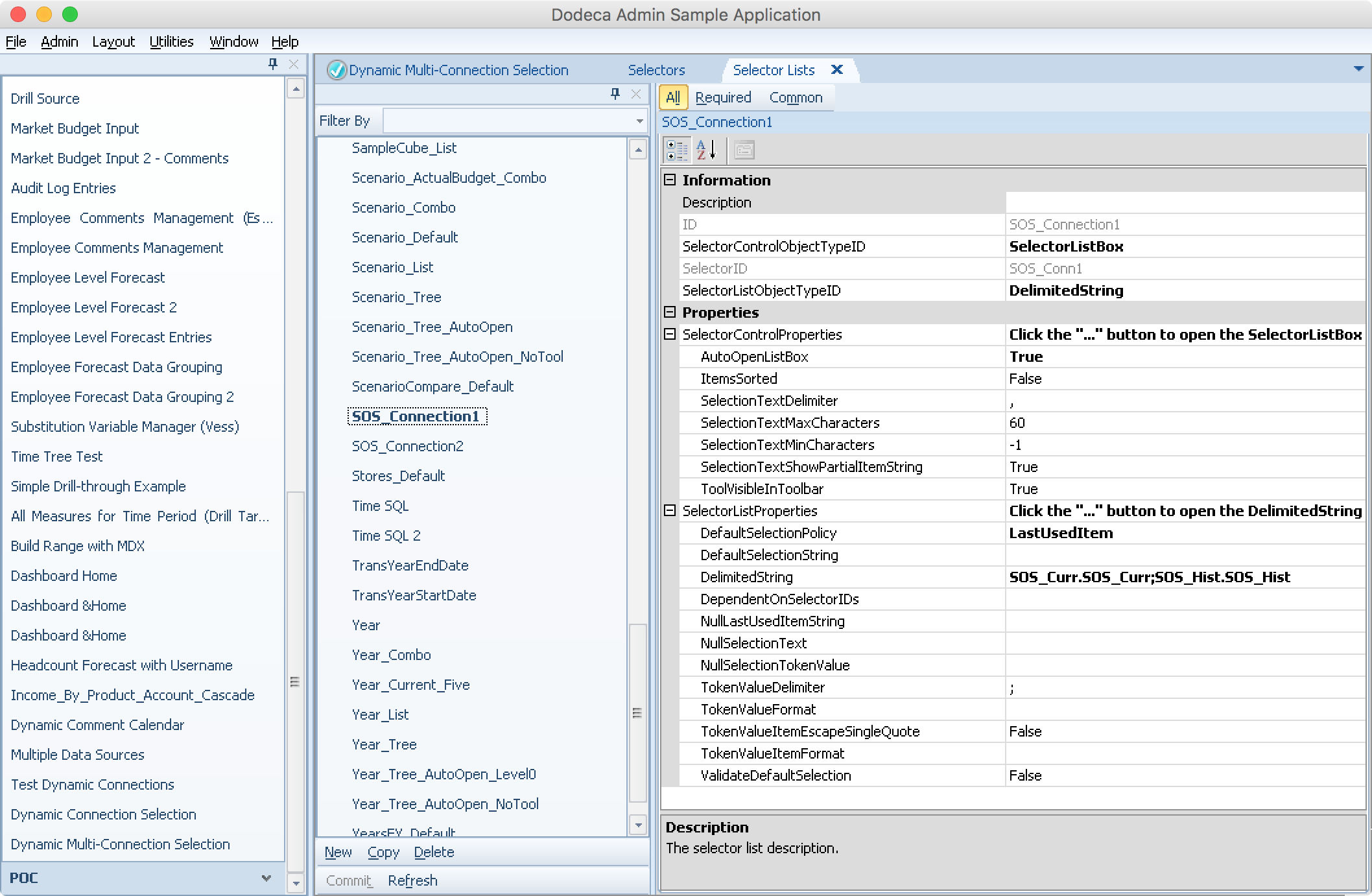
Dodeca Selector List editor editing a DelimitedString selector list

Creating/editing a Dodeca selector based on a delimited string

Notice that I used the DelimitedString list type again for this example. I can of course source the data from an Essbase dimension, SQL query, or whatever, but for demo purposes, the delimited string type is very easy to get running with. I’ll get more into the details later, but while we’re on this screen I also want to point out that I set the AutoOpenListBox setting to True, and the DefaultSelectionPolicy is set to LastUsedItem. These are choices that affect the user interface/experience. In this case I’m telling Dodeca that I want the list box for the selector to pop open automatically when the view opens, and I also want the selector to remember the last value that the user selected. This adds a bit of polish to the user experience that I really like, so the user can just pop open the view, and if they have a previous selection, it’ll automatically restore those so they don’t have to set everything all at once every time they open the view.

Template Configuration

Now that I have the Selectors and Selector Lists basically configured, let’s go to the template. For this example I am going to have two retrieval ranges: one for each connection that the user is allowed to dynamically select. In the following screenshot you can see my first retrieval range, and just above it I have a cell with the text “Using [T.SOS_Connection1]“. The token will be replaced by the contents of the selector when the user makes a choice. I don’t strictly have to do this for any functional reason; I just wanted to show it so that I can easily see what connection was used in this example.
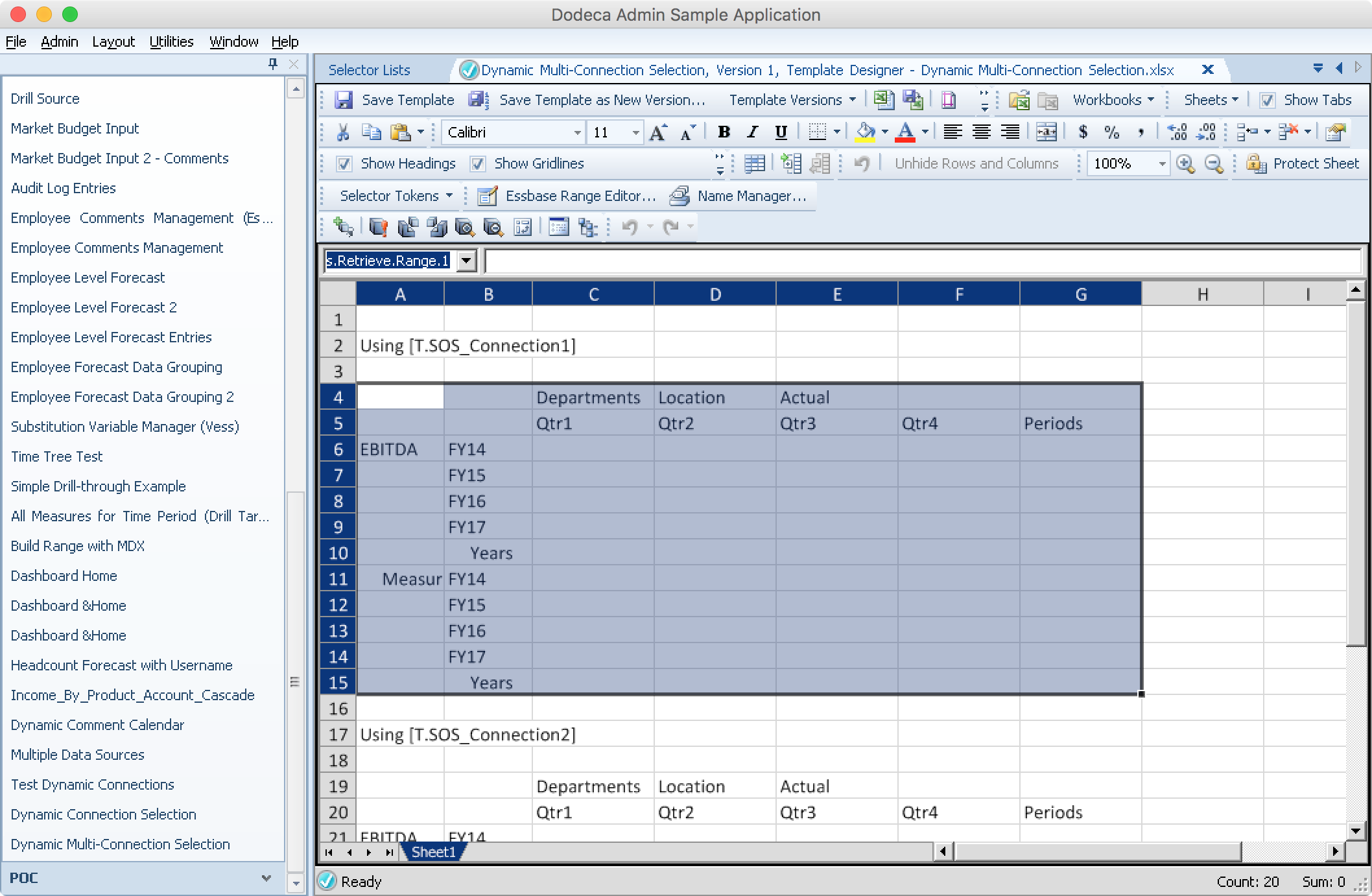
Dodeca template editor highlighting one of two Essbase retrieval areas

Highlighting the first retrieval range on our test view

Setting Named Ranges

Now I’m going to go make sure that my named ranges are perfectly dialed in. If this were a more typical Dodeca view then I make have just two named ranges, and then just define the connection to use on the view itself. But I need two more defined names in order to specify the proper connection for each retrieve range. Now for the “trick”: rather than the defined name referring to a specific Dodeca connection ID, it’s going to be defined as a formula that contains the token value from the proper selector:
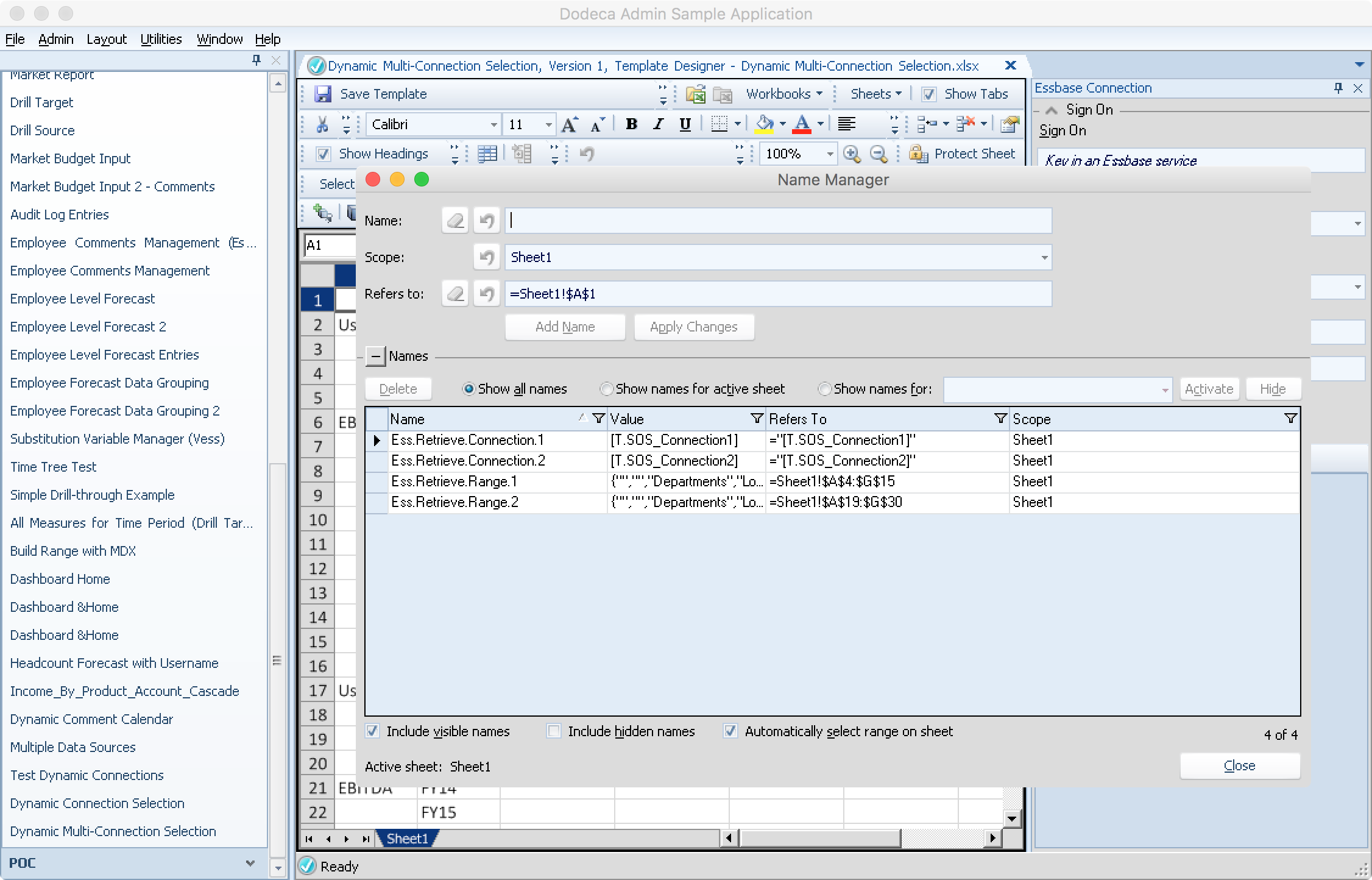
Dodeca template editor editing defined names in spreadsheet

Editing the defined names in our template

Notice that my retrieval connection definitions refer are configured with the values of ="[T.SOS_Connection1]" and ="[T.SOS_Connection2]". For this dynamic multi-connection example, this is essentially the secret sauce. At view build time, these values will have the selector values plugged in and point to the proper connection.

Remaining View Properties

Now for just a few housekeeping items on the view configuration. One, let’s set the AutoBuildOnOpen value to true. Combined with the selector lists auto-populating with their most recent value, this means that if there happen to be recent selections (i.e. the user has opened and configured this view before), then when the view opens it will automatically build if it can. In the case that there aren’t recent selections (i.e. the user hasn’t opened the view before), then the view will just wait for selections to be made, then allow the user to build).
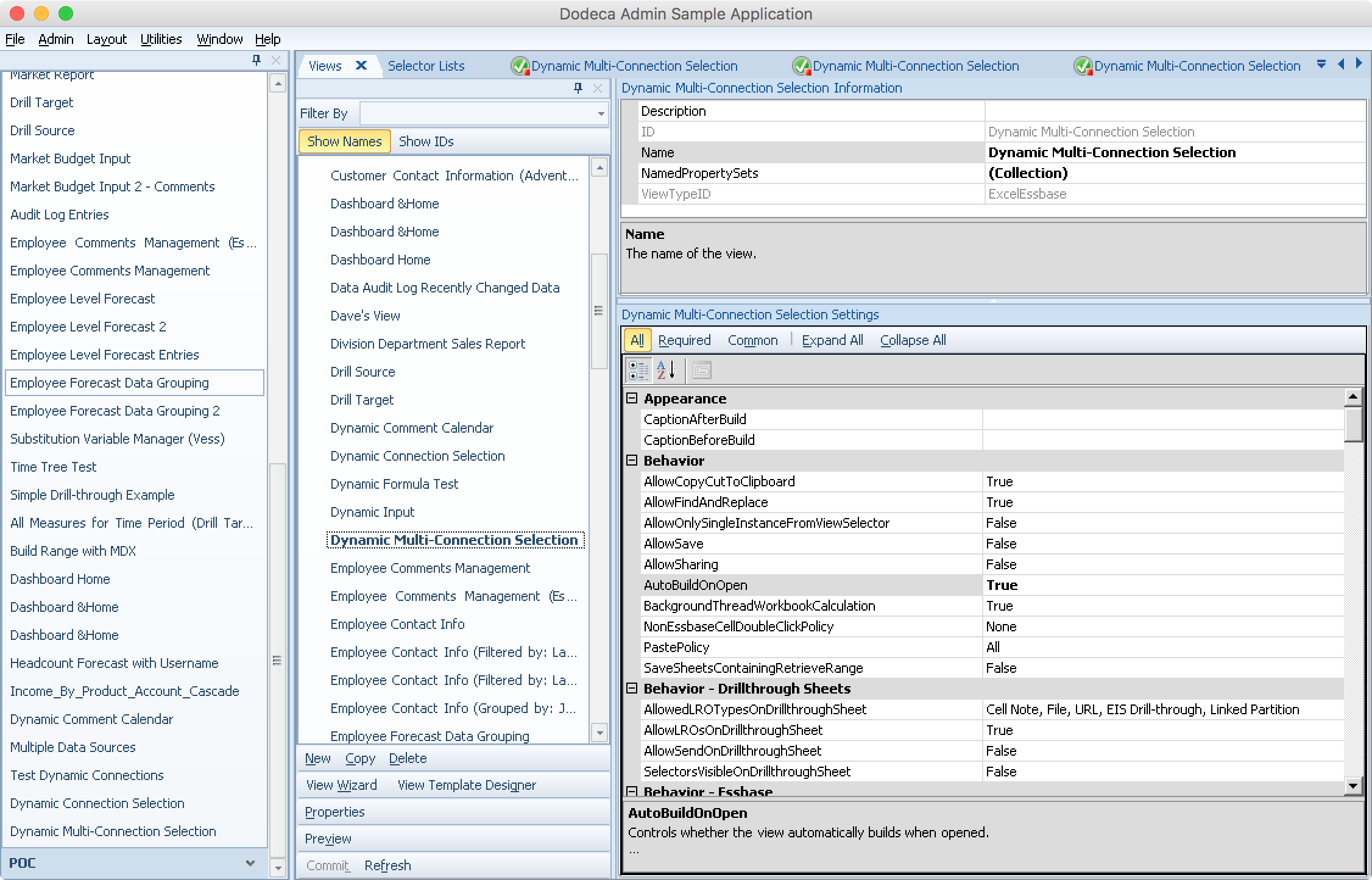
Editing Essbase View properties in Dodeca

Setting the AutoBuildOnOpen value to True

As a remaining UI consideration, I want to set the selector list UI configuration to stacked. This is via the SelectorDockedControlGroupStyle setting (set to Stacked in the screenshot below). Combined with the Selector List settings from earlier, this means that when the view is opened, the selectors will automatically be shown, and we’ll see both at the same time (as opposed to having to select a tab to flip between them). As I mentioned, this makes the user experience just that much smoother, reducing the number of clicks necessary, especially for repetitive/additional uses of the view. Also notice in the following screenshot that I have my two selectors configured:
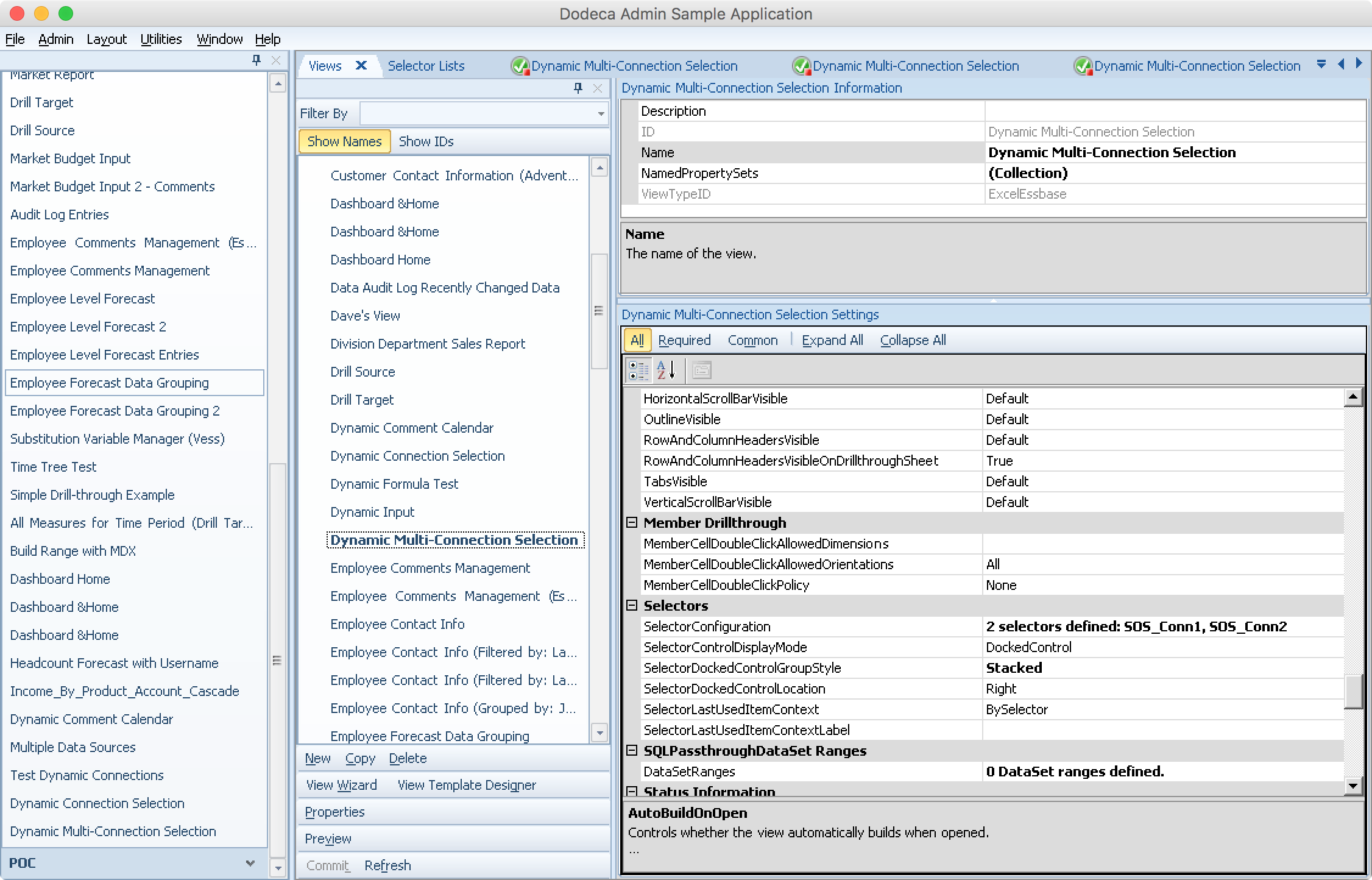
Editing selector properties for Dodeca Essbase Excel view

Setting the two selectors and their UI appearance (Stacked)

Tying It All Together

Alright, here we are at the end: we have our Essbase connections, selectors, selector lists, template, and view configuration all set exactly how we want it. Now we should be able to open the view, see the different connection choices presented automatically, and be able to build a view using those dynamic connection selections. For extra fun, I’m going to turn the auto build setting on (Auto on in the toolbar below), meaning that as soon as I click an option in either of the selectors, the view will rebuild using the current selections. And here we have it:
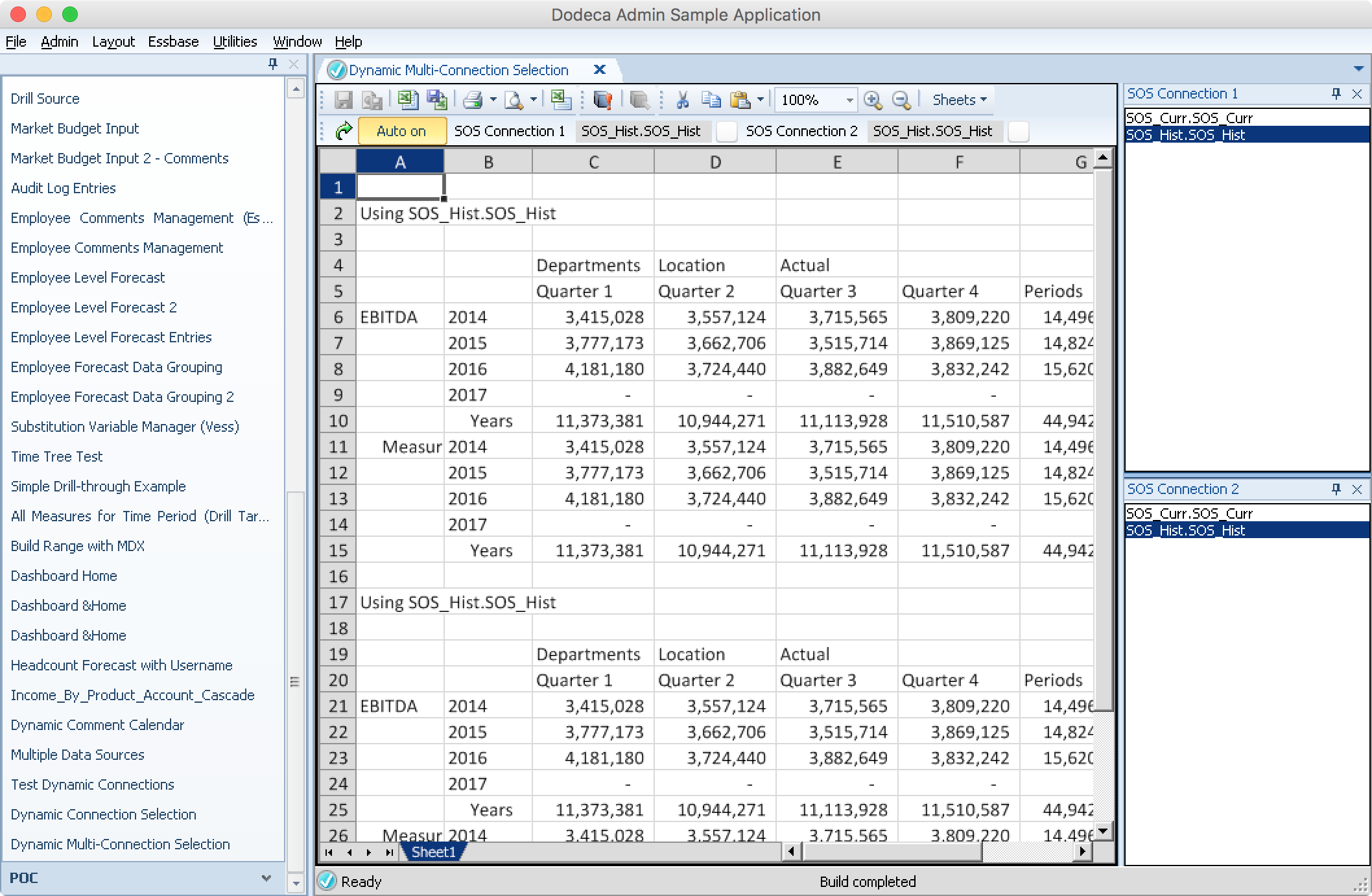
Showing the Dodeca Essbase Excel view being built based on dynamic connection selections

The final view, able to choose the connections dynamically and have the view auto build

You can see that the labels (rows 2 and 17 in the above screenshot) are dynamically updating based on the selection I’ve made. And sure enough, when I click on a different connection in one of the selector lists, the view rebuilds and uses that dynamic connection. Awesome.

I love this example so much. As I’ve said before and I’ll say again: Dodeca allows you to model your software and solutions after your business, rather than forcing you to model your business around software, which is exactly how it should be.
Dynamic Essbase Connections in Dodeca: Faster Cubes and an Enhanced User Experience

The other week I showed an innovative approach to providing user-selectable Essbase connections from a Dodeca view. I’m going to continue on the subject of dynamic Essbase connections this week, but with a bit of a twist. I’m really excited to show this technique off because it’s a perfect combination of showing the flexibility that Dodeca provides, but perhaps even more importantly it speaks so strongly to our raison d’être: making Essbase better.

Current Cube vs. History Cube

Many organizations spin off a copy of their cube each year or periodically when they need to boost performance a bit. Typically the major win for performance here is that you can drop a year or more of data, often by literally deleting a member or two from the Years dimension. In an ASO cube, this can significantly cut down on the amount of data in play (thereby increasing some combination of load and query performance), and in BSO databases, the effect can be even more dramatic, particularly depending on whether years is sparse or dense. Years (FY17, FY18, etc.) is typically a sparse dimension, but is sometimes dense, which could yield even more reasons to try and keep it as small as possible.

Transparent partitions are also often used for carving up a cube into multiple sub-cubes (and then providing a unified/all-years cube to end-users) in order to achieve better single database performance, but partitions can also introduce a fair bit of complexity and create administration/management issues. For a lot of organizations, it’s just nice and simple to squirrel away a copy of the cube as it stands at a point in time. But this also tends to necessitate some end-user training.

For example, if a given cube is only going to have the most recent year or few years in it, then users need to be aware of where to go to get data that’s older than that.  Generally this isn’t a big deal since most of the time the user is going to want to work with the “current” cube and not have much of a need for older data.

Implications of the Current/Historical Cube Dichotomy in Dodeca

As it pertains to Dodeca views, the current/historical cube dichotomy could have some implications for your views and applications. For example, since a view is typically configured for a single Essbase connection, you might have to make a copy of a view and perhaps its template, then change the connection. Now you have two copies of each view and possibly the templates. One view is pointed to the historical cube and one points to the current cube.

Here’s an idea though: why not just dynamically choose the Essbase connection depending on the year? It turns out that Dodeca can easily facilitate this with a simple workbook script. I’ll show you how.

Background

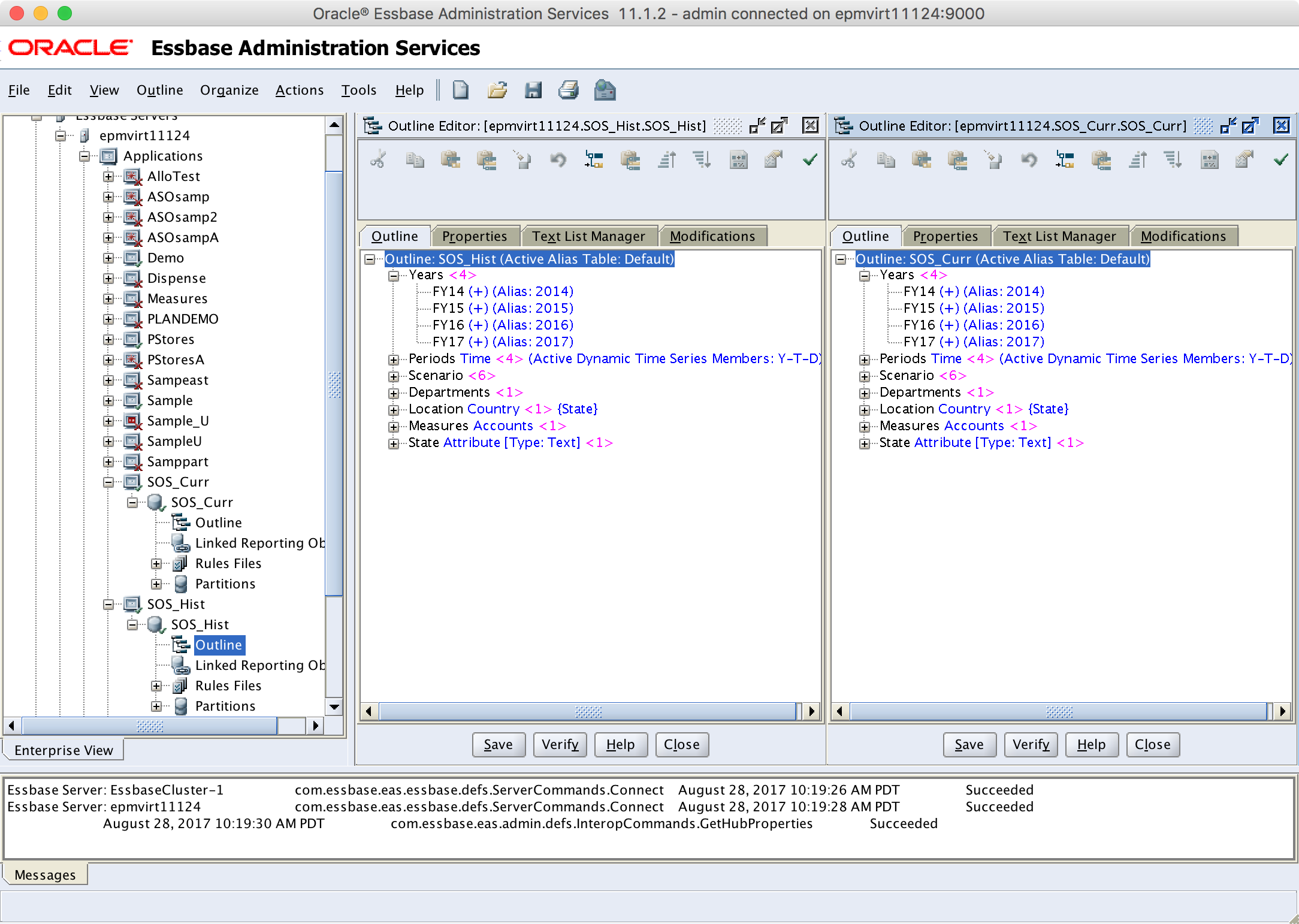
For this example, I’m going to work with a current and historical cube where the Years dimensions are completely identical to each other (as opposed to deleting the irrelevant years). This will simplify things for the moment, although it’s also possible to implement this technique where each Years dimension is “pruned” accordingly. Here are my Years dimensions:

Screenshot from EAS showing two identical outlines for related cubes

Two cubes in a “current” and “historical” configuration

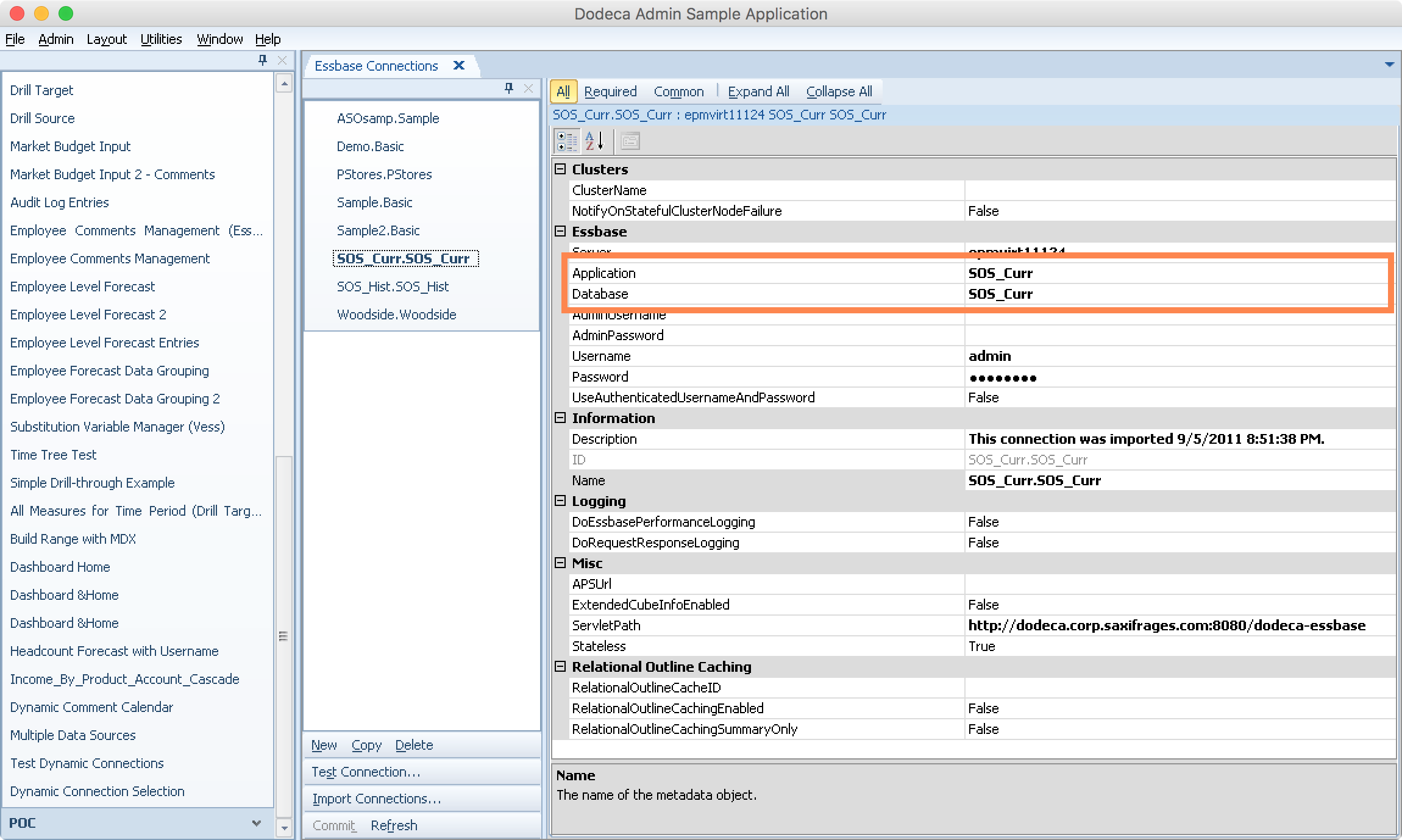
Over in Dodeca (by the way, yes, that’s Dodeca Spreadsheet Management System running on macOS!) I have my two connections defined (SOS_Curr.SOS_Curr and SOS_Hist.SOS_Hist, following Dodeca’s Application dot Cube convention for naming connections):

Dodeca screenshot editing details for an Essbase connection

Dodeca Essbase connection configuration for “current data” cube

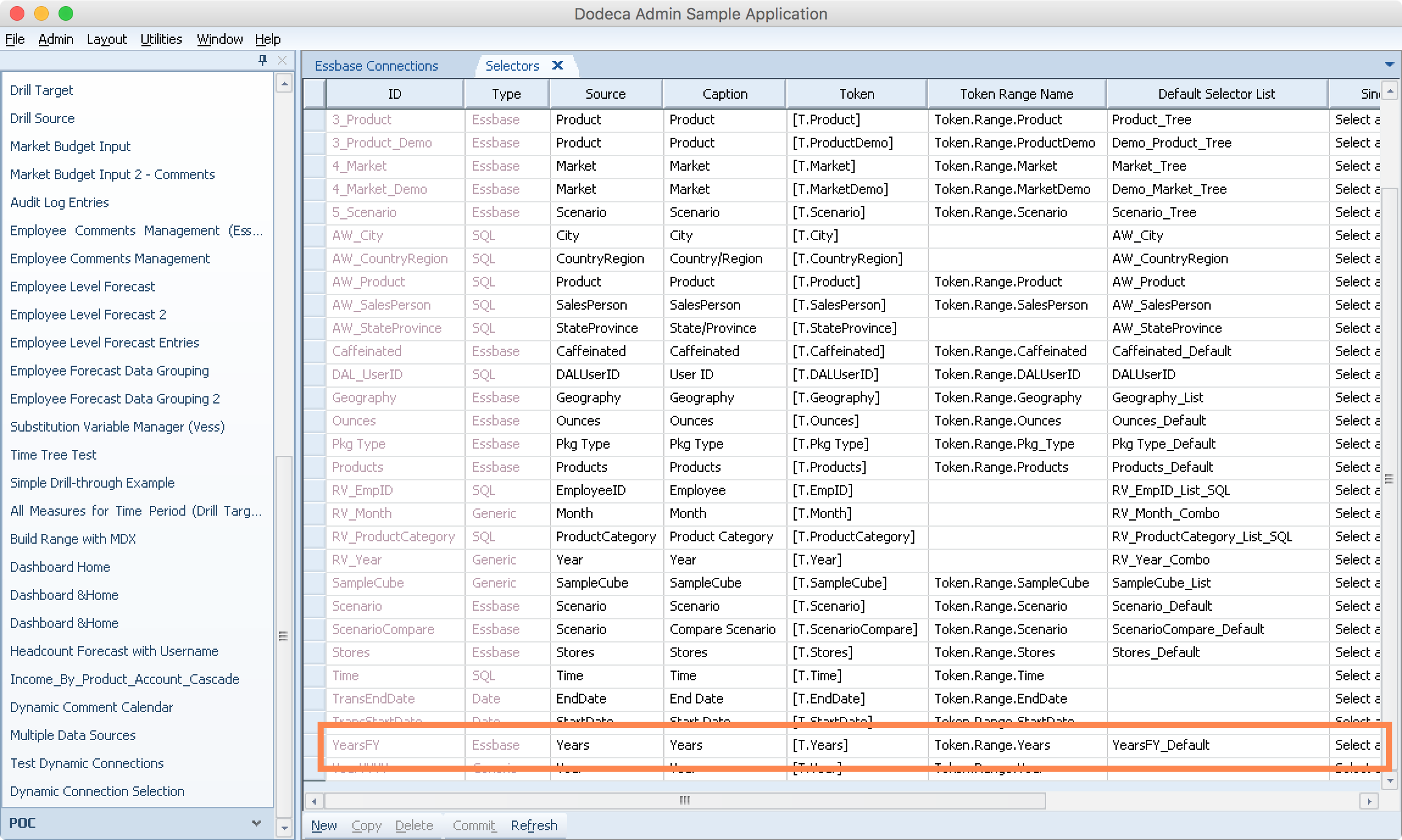
Now, since I didn’t already have a Selector for the Years dimension, I went ahead and created one, although typically this would already exist:

Dodeca Selectors editor, focused on a selector for the Years dimension

An Essbase selector for the Years dimension

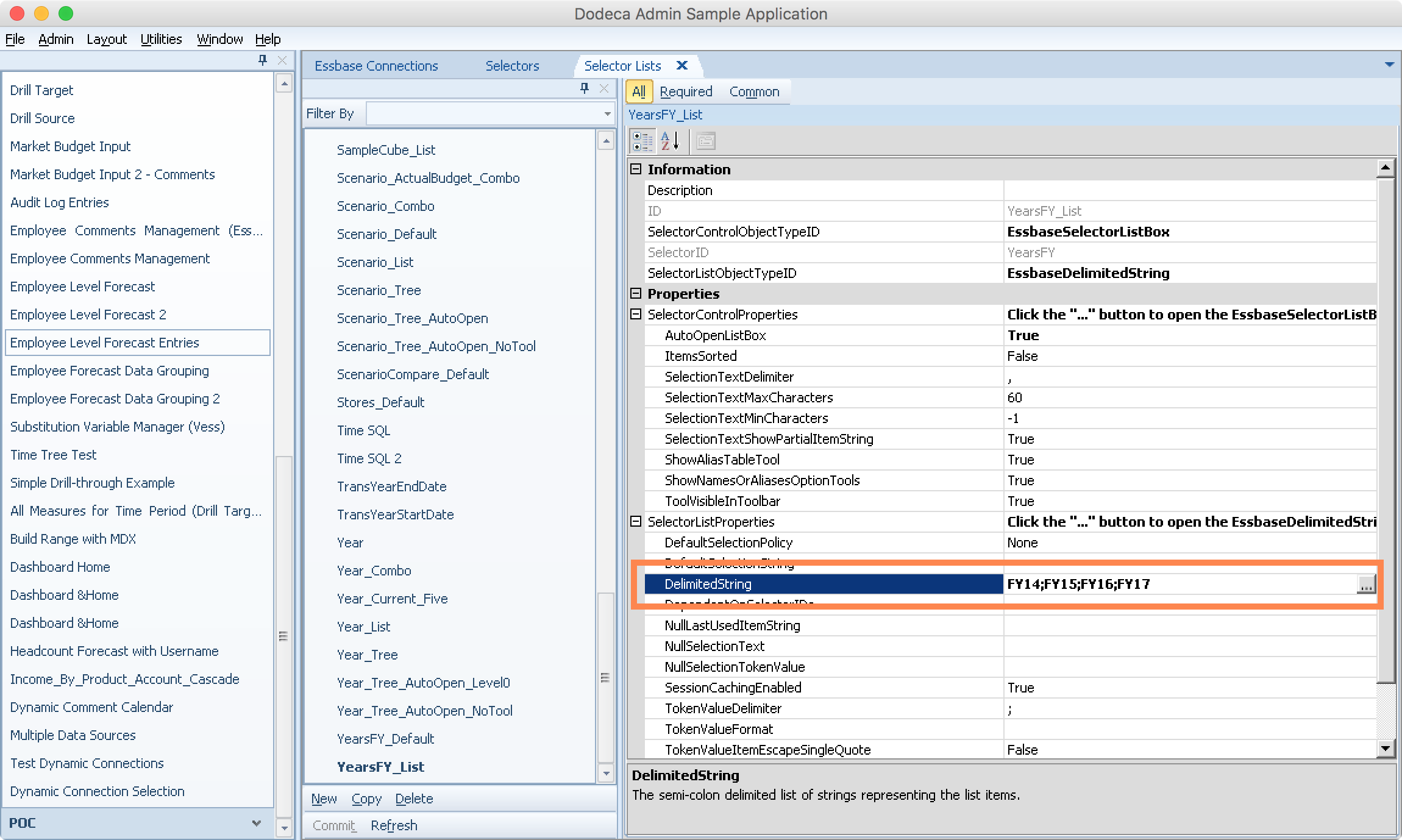
Now I’ll define a custom Selector List for the Selector:

Editing an EssbaseDelimitedString selector list with entries for FY14-FY17

Create a selector list based on a delimited String

I’m going to use the Delimited String style of selector, where I can easily just define the different user-selectable options myself. This approach will work nicely enough for this case since there’s not really a huge need to pull the members dynamically from the cube, and in the case where we would customize the Years dimension in each cube (to shrink it down to only relevant years for that particular cube), I literally can’t source the items from the outline, so defining them manually works well.

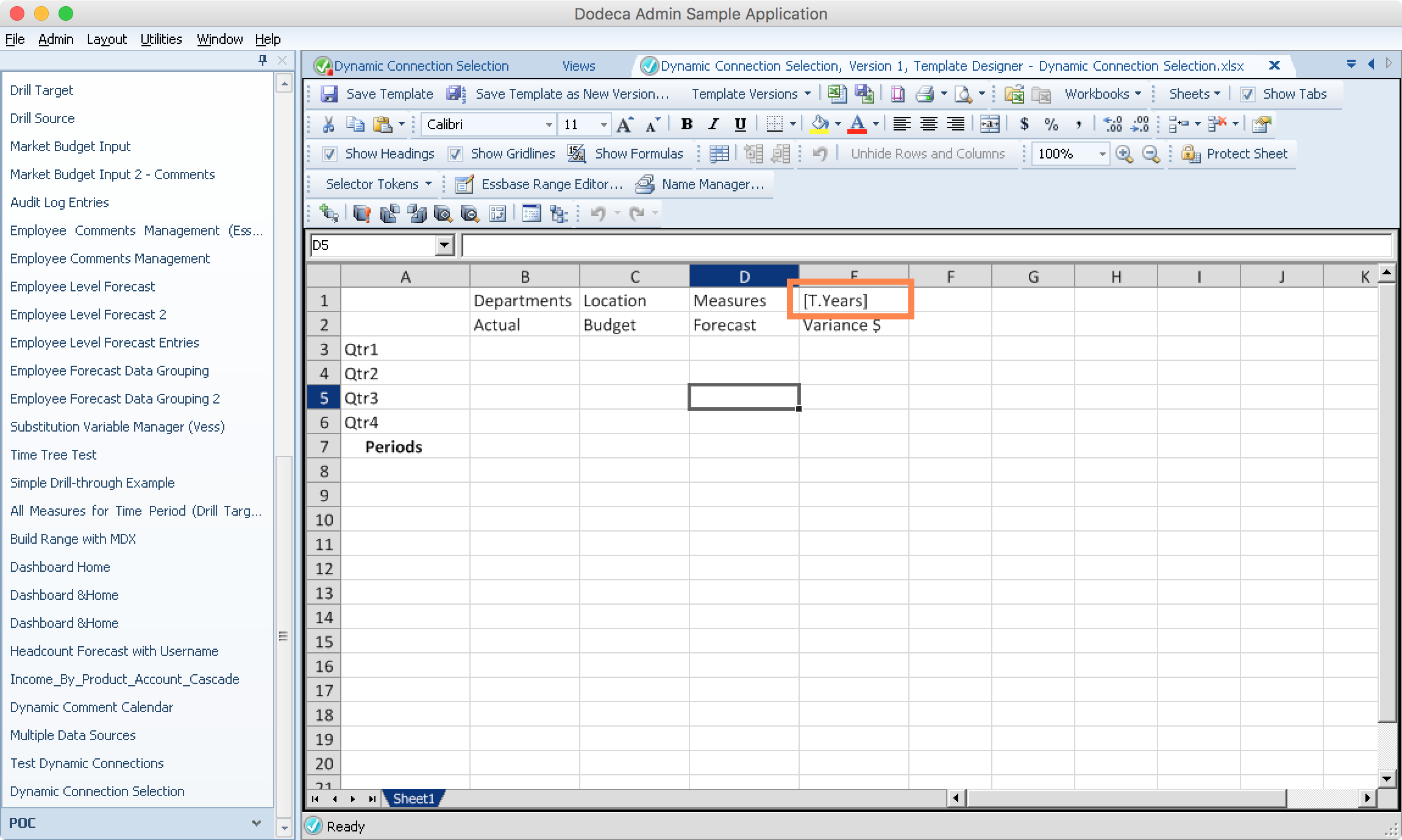
Let’s now define a really simple template such that the only tokens used are for the year itself:

Editing a Dodeca spreadsheet template to perform a simple retrieve with a selected year

A simple retrieve template with a token in the POV to select the year

Of course, as I would in any Dodeca view template, I also set the Essbase retrieve range as normal.

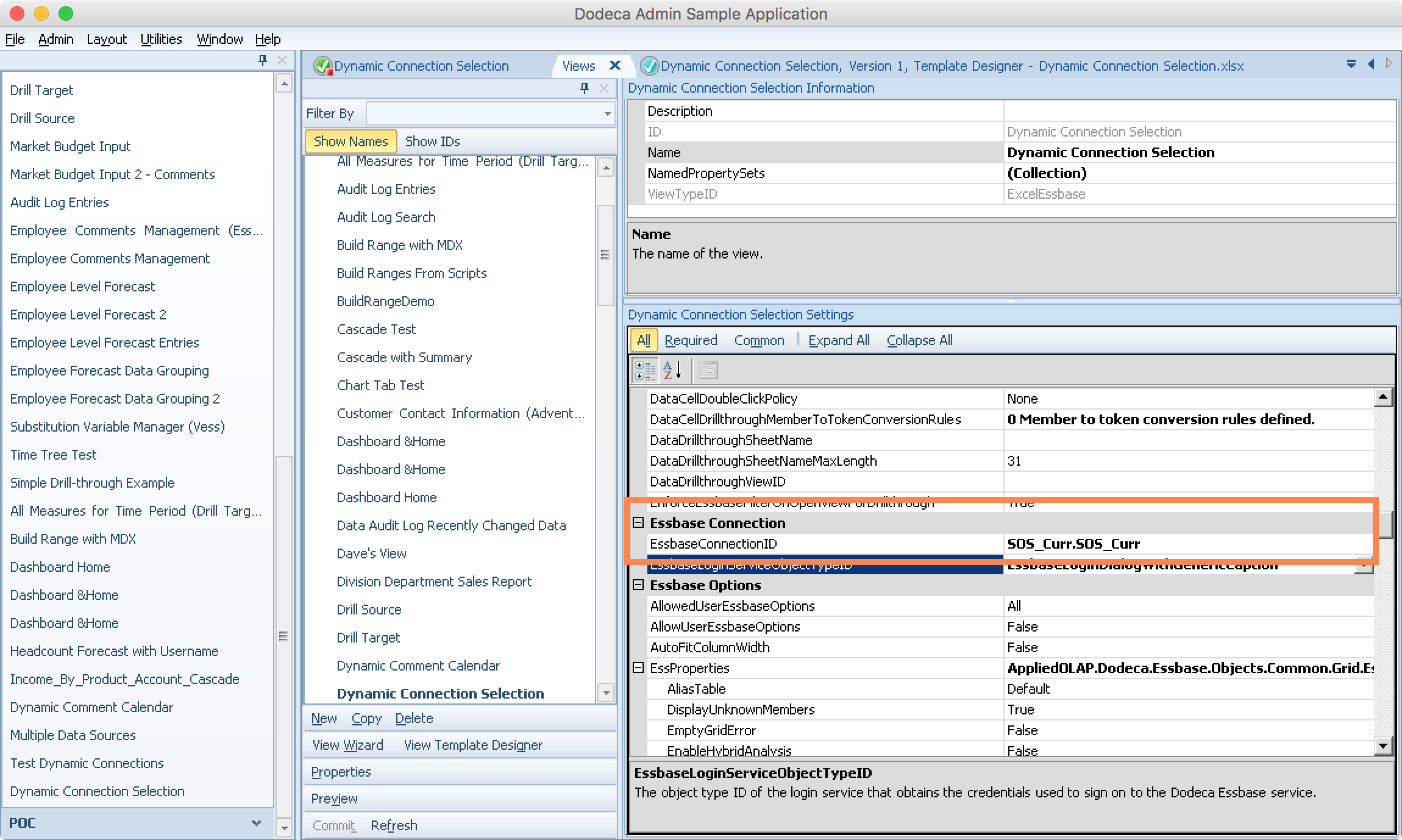
Now over in the view configuration, I’m going to set the Essbase connection:

Editing a Dodeca view configuration to select an Essbase connection

The “default” connection for the view will be the “current” cube

When I created this view, I actually used the quick start wizard and selected the Essbase connection ahead of time, so that I’d be able to use that particular connection to help me develop the template inside of Dodeca. Also, I’m making the design decision here that I want the “current” cube to be considered the “default” connection. In other words, I’m only going to change the connection for the view when I need to (i.e., the chosen year necessitates connecting to the historical version of the cube).

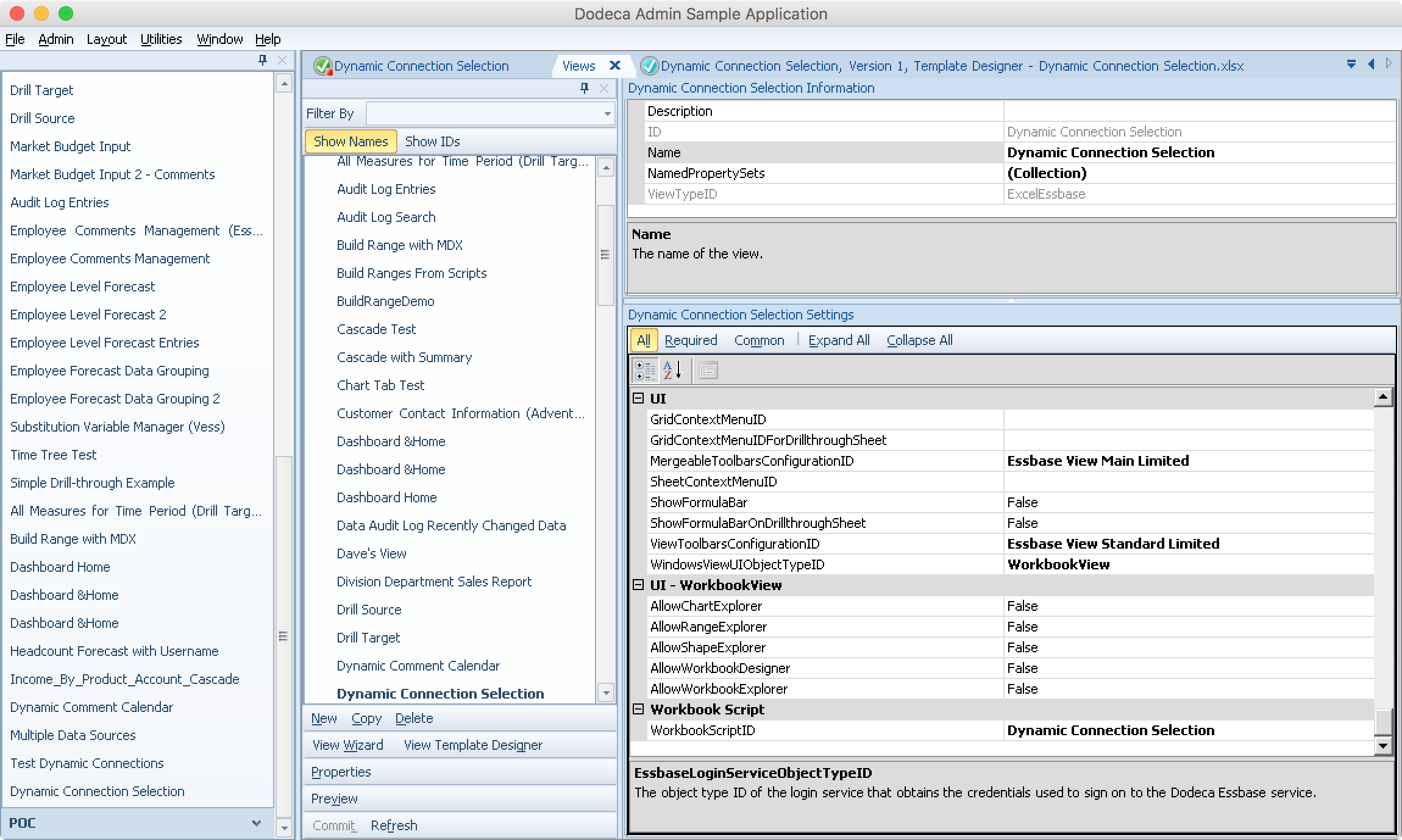
And of course I will use a workbook script (WBS) to help determine the proper connection:

Editing a Dodeca view to select a given Workbook Script for the WorkbookScriptID setting

Set the WorkbookScriptID to a new workbook script

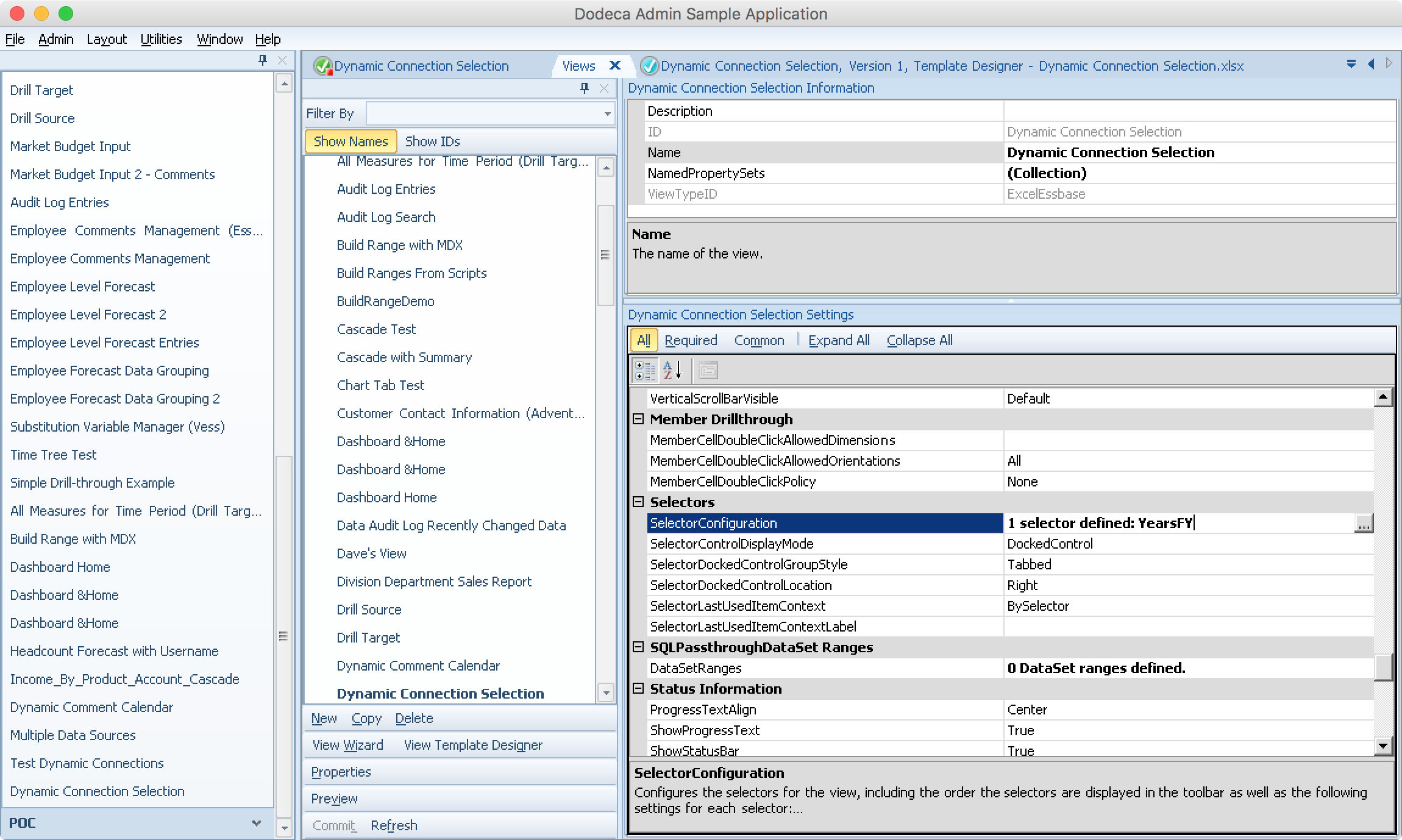
And just for completeness, check out that I have one selector (which is the Years selector/list from earlier):

Configuring the selectors for a Dodeca view

Defining the selector for the view

Some Workbook Script Magic

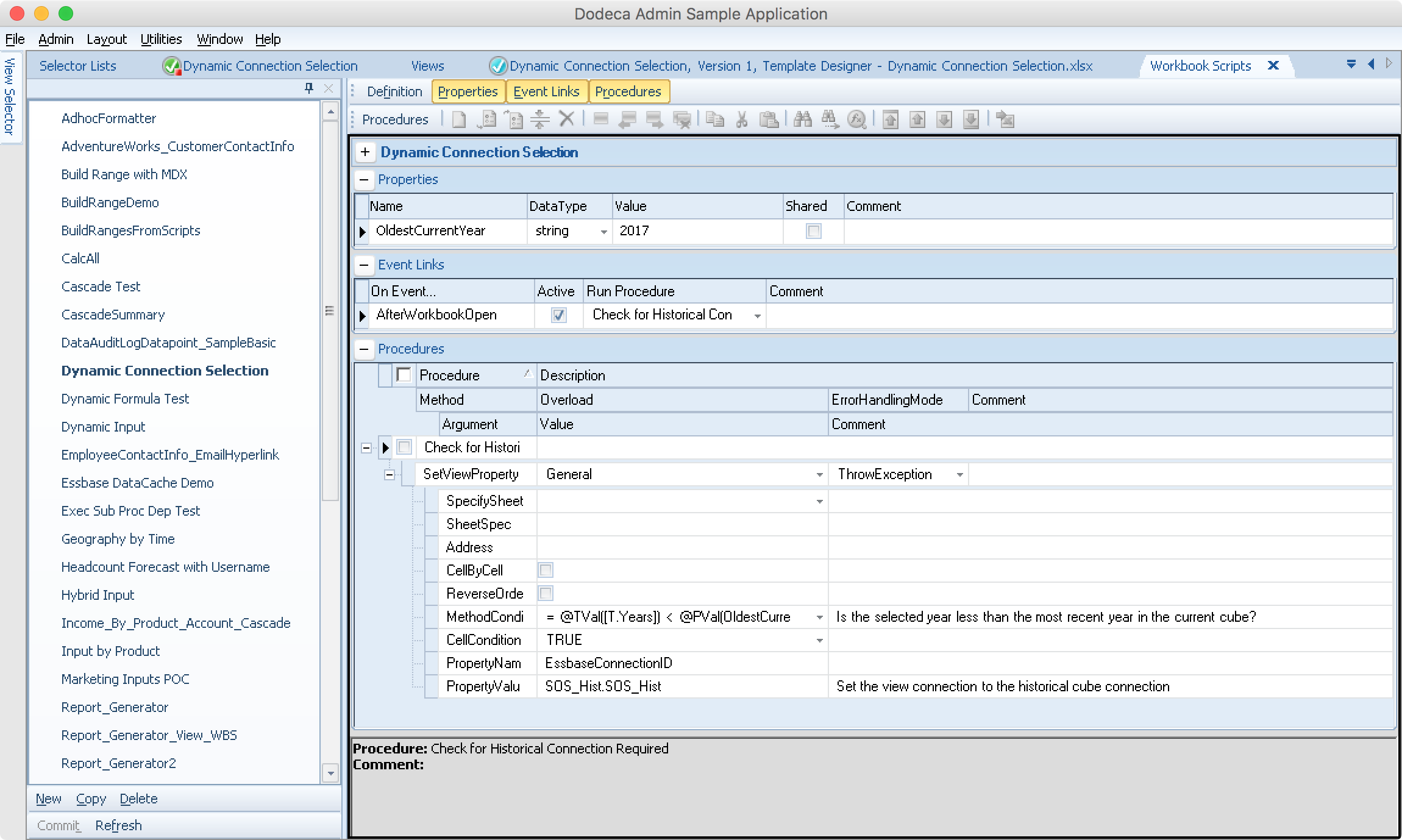
At this point, everything would actually be set as it needs to in order to have a “normal” Dodeca view working just fine. But the purpose of this exercise is to show how we can dynamically select the connection during the view/build lifecycle. For that, we’re going to use a workbook script. Here’s the entire script, which I’ll walk through:

Editing a Dodeca Workbook script for a view so that the Essbase connection is dynamically selected based on a token

A workbook script for dynamically choosing the Essbase connection for a view

For starters, I’ve defined a property (think of this like a variable in the script) called OldestCurrentYear that will denote where the break in data is from the current cube to the historical cube. I could have hard-coded this into the script but I thought it’d be nice to make it a property so that the script is more documented and its intent is more obvious. Also, if I wanted to, I could have just as easily used an application-wide token in this script. This might be useful in the event that I have several cubes that I want to use this dynamic connection technique on, and want to reuse/share this workbook script amongst them. Then I wouldn’t have hard-coded values all over the place and one-off script tweaks that I’d have to make whenever the “break year” changed.

Now over to the meat of the script. There is one event (AfterWorkbookOpen) that calls my procedure for flipping the connection if needed. Remember, the connection for the view is going to default to the current cube – so I just need to check if they actually want data older than a certain year, and change the connection if needed.

The method condition (the condition that is checked to see if the method itself is even executed) is this:

= @TVal([T.Years]) < @PVal(OldestCurrentYear)

Let’s break this down since I’m using a couple of different workbook script functions to help. First of all, I am using @TVal (token value), in order to give me the selector value (in this case, either ‘2017’, ‘2016’, or whatever) for a given token associated with the Years selector. Next, I’m checking if that’s less than the OldestCurrentYear property that I set earlier. In order to reference this property, I use the @PVal function (property value).

In the case that this condition (Excel formula) evaluates to true, then the method should be executed. In this case, the method itself is a SetViewProperty method that updates a property on the view being built. In this case, we want to update the Essbase connection (view property: EssbaseConnectionID) and set it to the ID of the defined connection pointing to the history cube). In this way, we will update the connection property based on the chosen selector value, and everything else about the view will execute as normal.

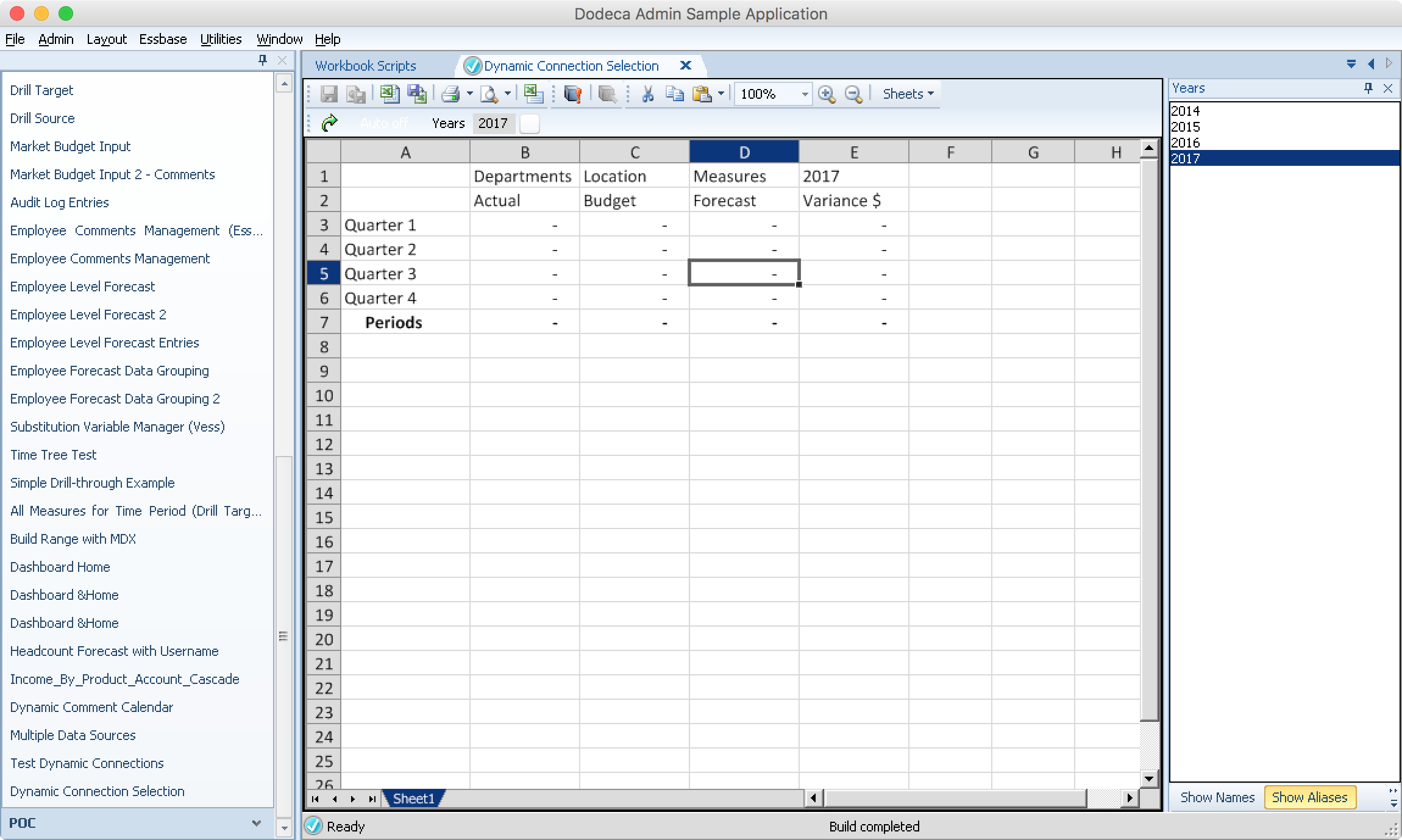
To make this really easy to validate, when I setup the cubes to show this technique off, I went ahead and cleared all of the data from the current cube, meaning that when 2017 is selected, no data should come back:

A built Dodeca view with a dynamic connection

The built view when 2017 is selected

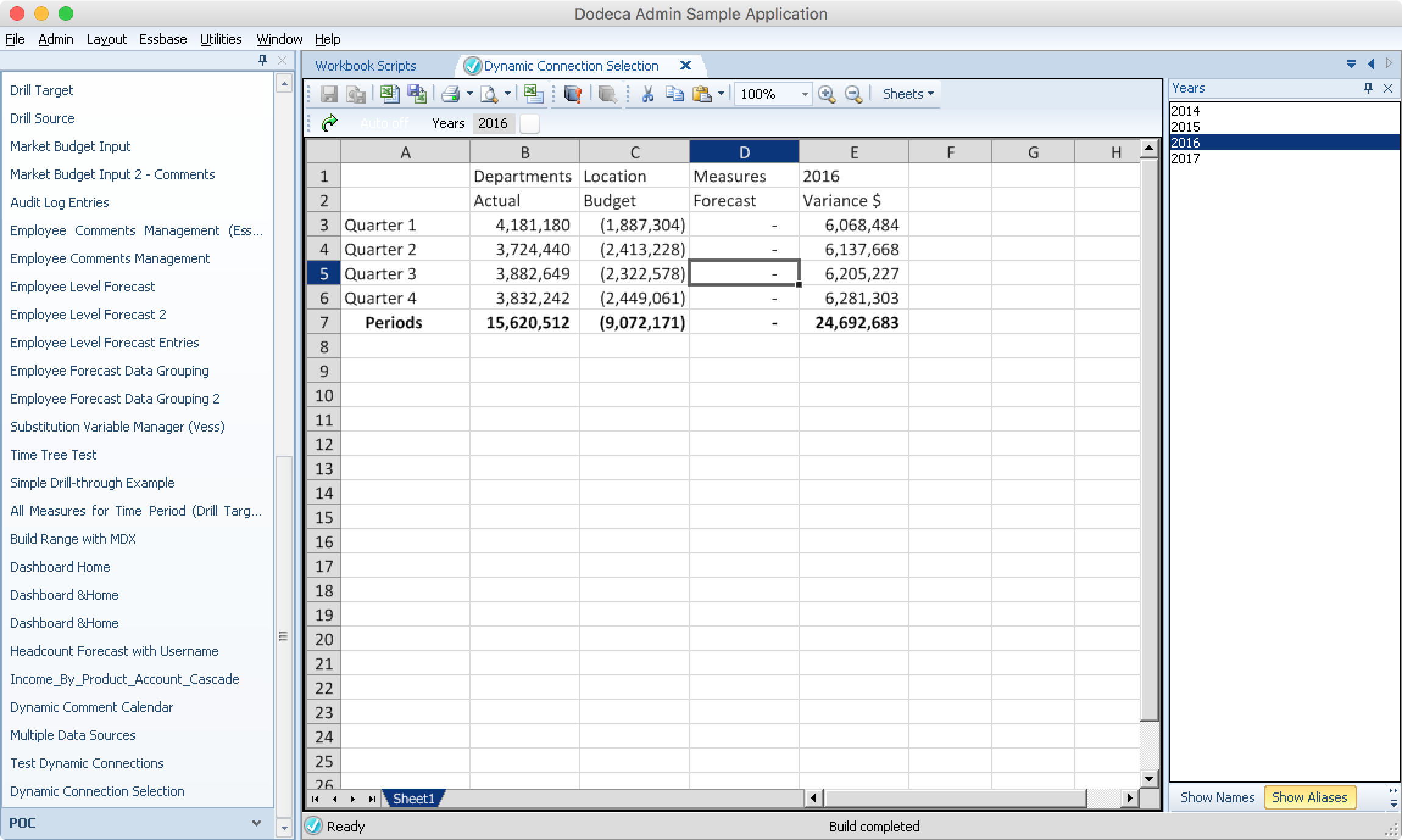
Now if I check it with an older year, such as 2016, I should see data because the historical cube has data for all years (including 2017):

A built Dodeca view with a dynamic connection

The built view when a different year is selected

A Brief Note on Excel Boolean Logic

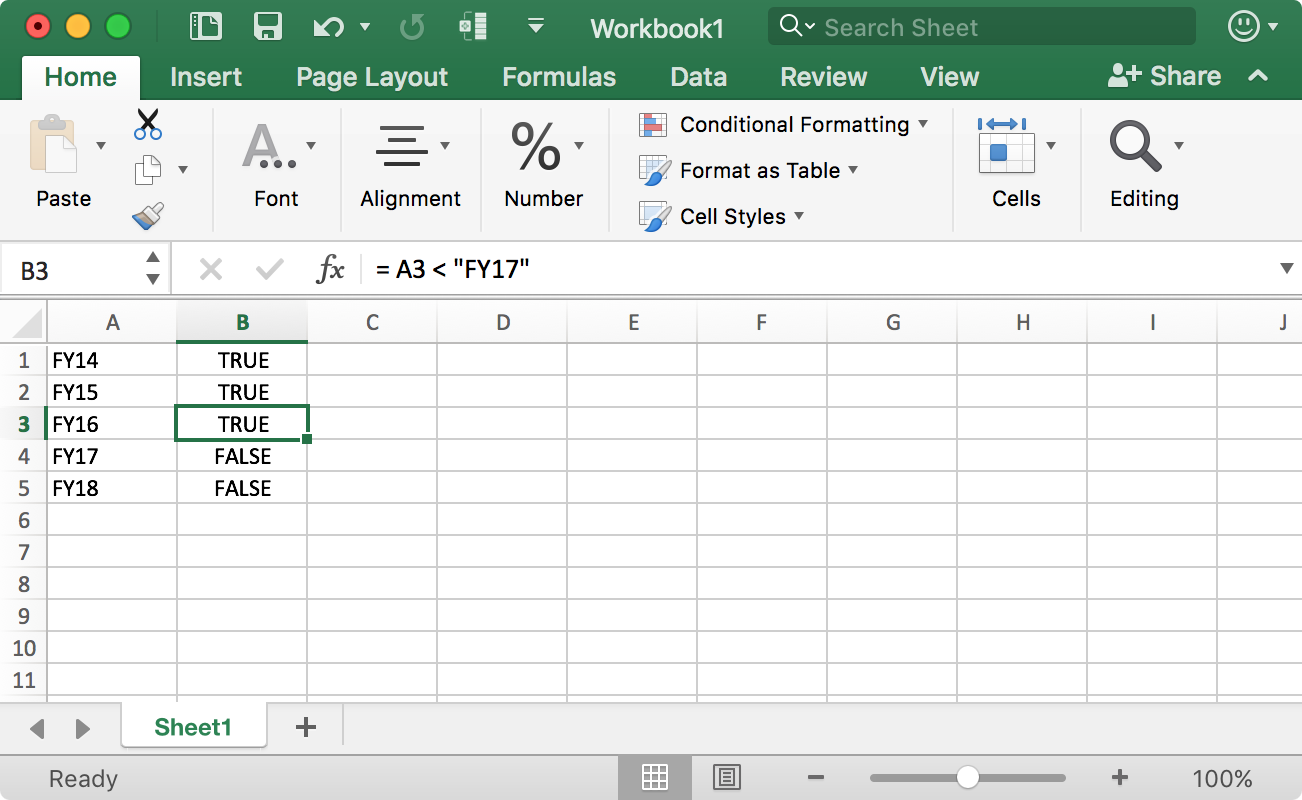
Among other principles in play, the way that I implemented this technique relies on simple boolean logic in my method condition. In this case it was using the less than operator, which given two inputs (typically numbers but can also be text), should always evaluate to true or false. If you’re not familiar with this “simple” way of thinking about logic even in Excel, you might otherwise be tempted to unnecessarily use an IF statement (which isn’t wrong or bad or anything). Just to prove that the logic works how I want it to, here’s a simple example in Excel:

String comparison boolean logic in Excel

Simple Excel boolean logic

You can see that this example actually compares string values (FYxx) and achieves the correct results. As I mentioned, while the less than or greater than operators are typically used on numeric data, they will also work on text data, and work just fine by simple virtue of the lexicographical ordering inherent in this data).

Some Caveats

There are of course some caveats to this technique and method. The main one is that one of the big drivers of spinning off archive cubes is not just to gain some performance, but because the other dimensions (measures, accounts, locations, cost centers, whatever) are also shifting around year to year and there might be some cleanup happening in those dimensions too – meaning that you might not be able to do the exact same retrieve with some specific member on a given cube that has changed from one year to the next. So long as your retrieves and report definition are sufficiently high-level, this won’t necessarily be a problem, but you’ll have to judge for yourself if your best approach is going to be with a separate view, application, tenant, partitions, or something else.

We Make Essbase Better

Like I said, I really liked this use-case. It’s actually inspired by a support email that came in the other day. There are so many great things about this technique because it’s this perfect combination of being able to improve performance and value, and perhaps most importantly, enhancing the user experience.

User Selectable Cube Connections in Dodeca

A request came in the other day asking if it was possible to make a Dodeca view’s connection dynamic/selectable by the user. For example, say you are rotating through cubes every month that are essentially the same outline but just have different data. You might have the January cube, the February cube, and so on. This is a somewhat unorthodox, but certainly not unique design approach that I have seen over the years. Among other things, this approach can help keep a cube very manageable/fast when an organization’s data needs and processes might otherwise require an entirely new dimension or other dimensional shenanigans in order to facilitate the necessary reporting, planning, and forecasting activities.

To start, since connection objects in Dodeca are centrally managed it is certainly possible to just update the connection details as needed and point to the proper cube. But in this case we need a little more power. Can we let the user choose the connection for their own Dodeca view? Absolutely. I’ll show you how in this article.

Setting Up

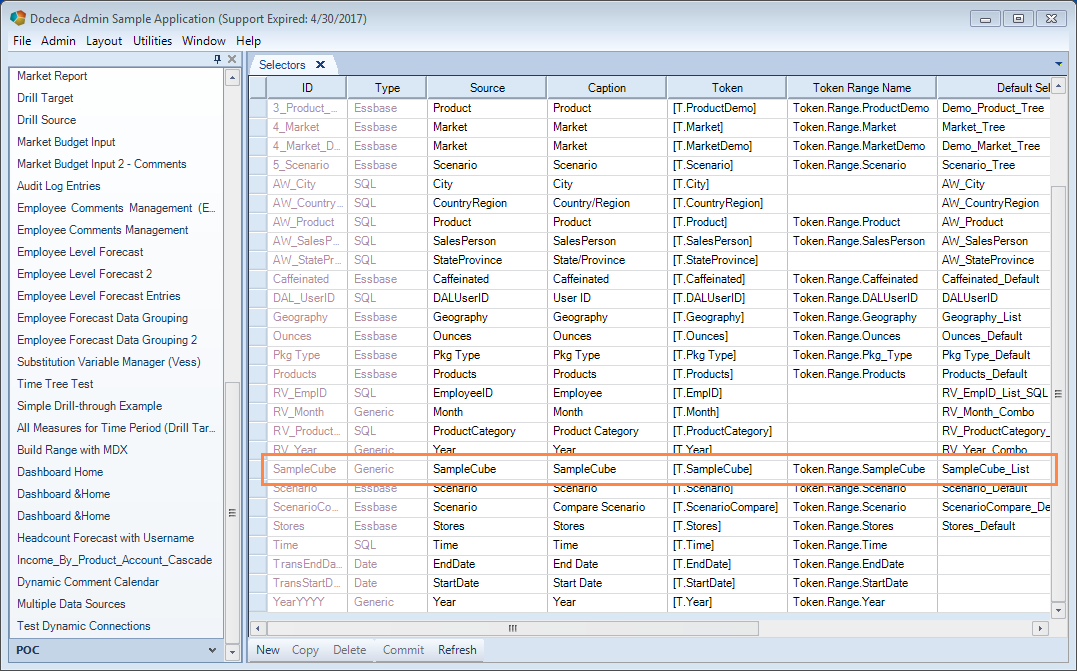
We’re going to let the user choose their connection just like they would choose anything else – from a selector list. So the first thing we need to do is define a new selector. In my example I’m going to imagine that we have multiple monthly versions of the venerable Sample/Basic cube that the user will be allowed to choose from. Here’s my new selector:

Dodeca Selectors editor with new generic selector highlighted

Creating a new generic selector in the Selectors editor

It’s just a generic selector (I am going to hardcode the available values, and they don’t correspond to some actual member name – so it’s not a SQL or Essbase selector). And I’ll just call it SampleCube with a token name of [T.SampleCube]. This means that in any Dodeca configuration setting that can use tokens, I’ll be able to use this token name to have Dodeca drop in the value that the user selected.

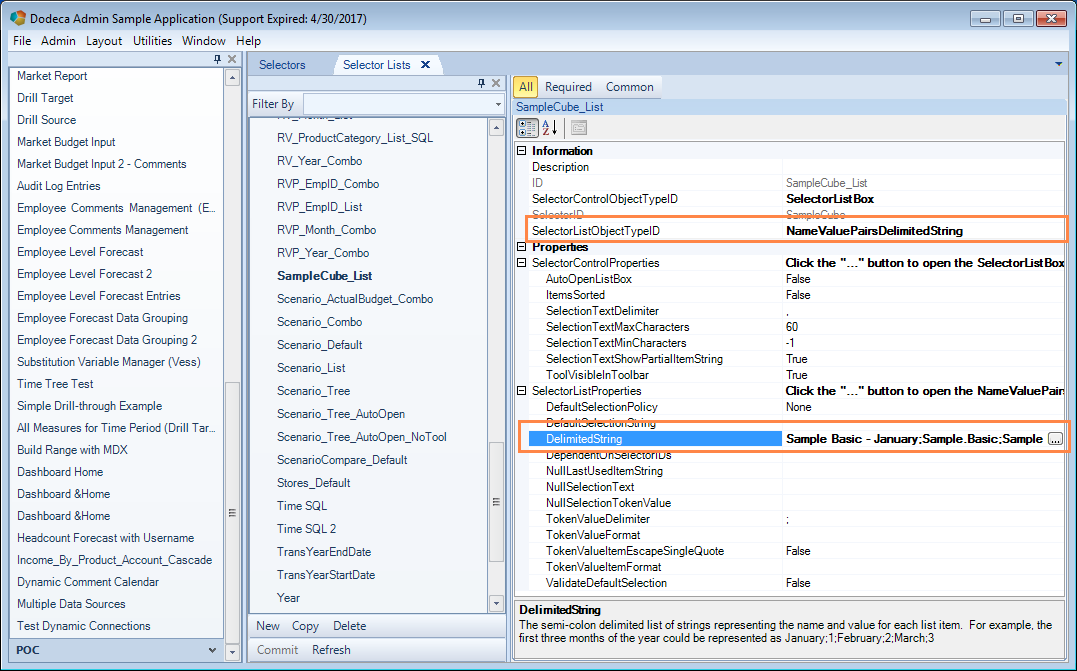
Next I need a selector list to go along with the selector. This will just be a basic selector list that is defined manually (as opposed to sourcing dynamically from SQL or Essbase). I’m going to add a little twist and a nice improvement here though by making it a NameValuePairsDelimitedString. This allows me to configure a selector list for the user by defining its contents ahead of time. Additionally, compared to a normal selector list I’m going to define this such that the user will see one thing but the actual token value will be something else. For example, consider the help text for the DelimitedString setting in the below screenshot:

Dodeca Selector Lists editor editing a NameValuePairsDelimitedString selector list

Creating a new Selector List for the data source selector

A pretty typical usage of this selector list would be to show the months of the year but the token value would actually be the month number. In the case I’m showing right now though, I’ve decided that I’d rather not show the possibly terse Dodeca connection ID to the user (such as Sample.Basic_JAN or something) but would rather hide that under the hood, so to speak, and show something a little more cleaned up such as Sample Basic - January. Of course, this method unshackles me completely from any arbitrary name, so I could just as easily put in Marketing Ops - January if that would be more intuitive for my users. It’s a small improvement but in the aggregate could result in saving a little bit of user training, confusion, and increasing user acceptance of the solution, so I think it’s a fantastic design choice here.

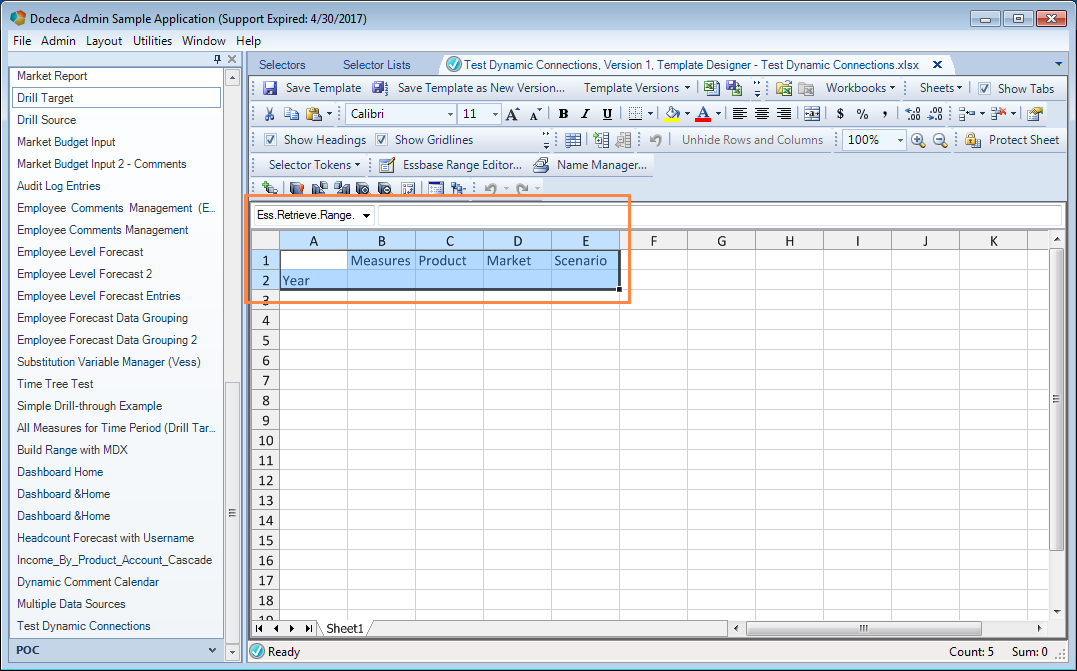
Now I’m going to define a very simple Dodeca view template with a single retrieve range (Ess.Retrieve.Range.1) that just does a top of the house retrieve from Sample/Basic.

Dodeca spreadsheet template editor showing named Essbase retrieve range

Simple retrieve range from Sample/Basic on a Dodeca template

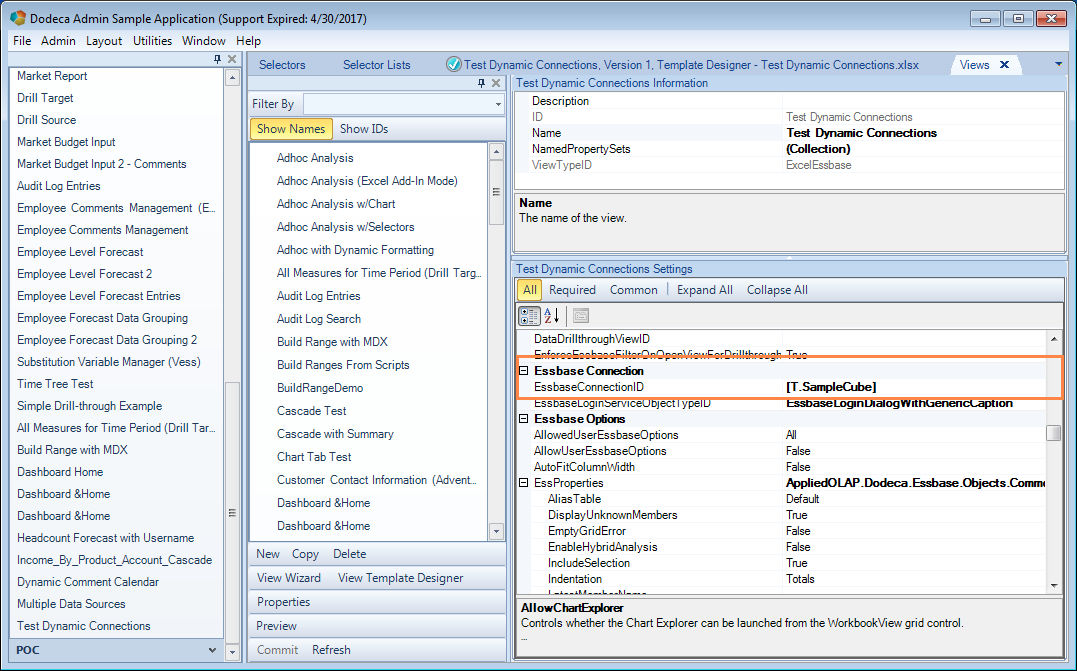
Now, when I designed the view in the first place I did it completely inside of Dodeca using the template designer. When I did this I actually just set the view’s connection to a specific connection for design purposes (and so I could ad hoc the design grid without having to manually login), so once I have the template how I want it, I now go back in to tokenize the connection ID, using the token name from my selector earlier:

Editing the EssbaseConnectionID setting of a Dodeca view

Tokenizing the EssbaseConnectionID setting on our Dodeca view

Also as part of designing the view, I added the selector I defined earlier to the list of selectors for the view (this view has just one). There’s no screenshot for adding the selector, but I’ve blogged about it numerous times in the past, so check out a different Dodeca article on this blog if you need a refresher.

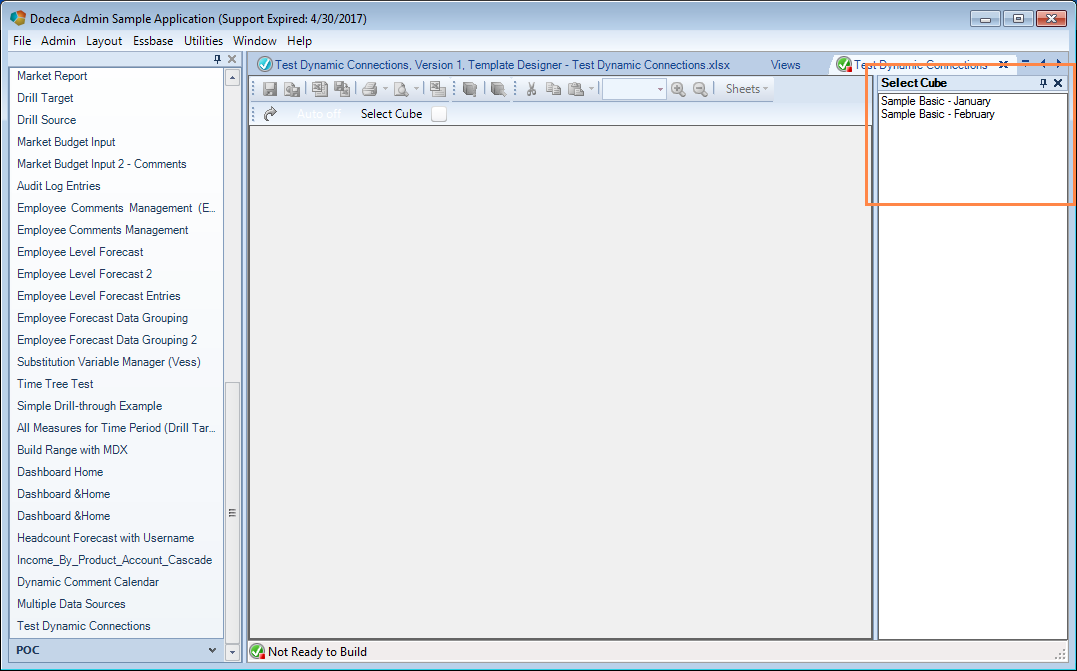
The last thing we need to do now is just test the view. Having tokenized the connection ID, and having added the selector, I now have this (pre-built) view:

Launching the Dodeca view with the data source selector

The new selector that let’s us choose a value to be used for the connection

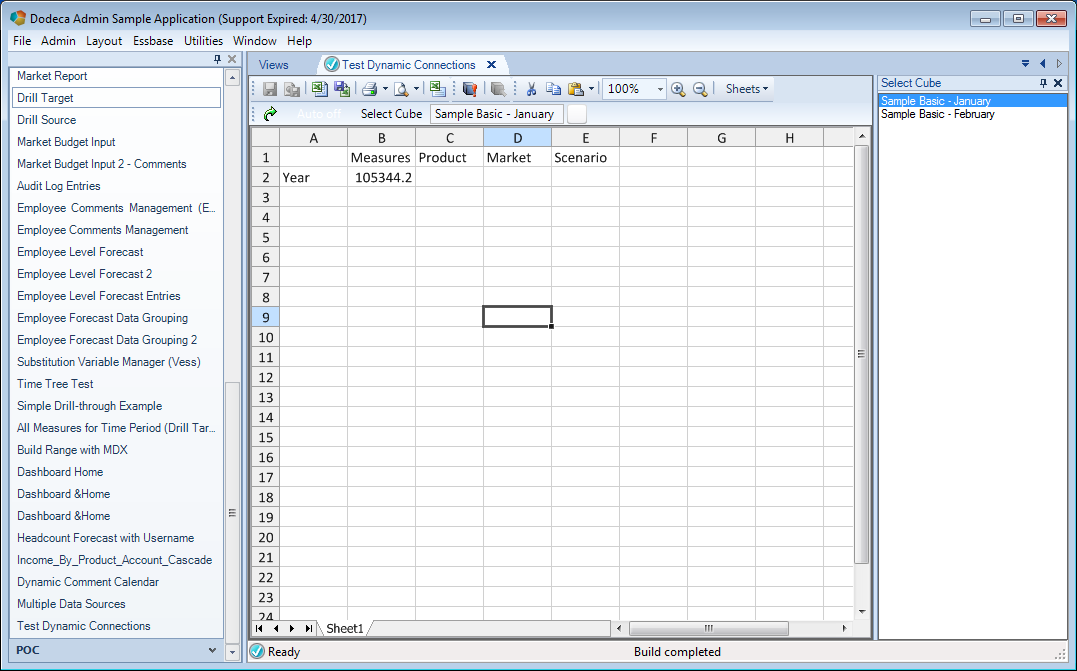
This looks perfect so far: the “nice” names are being shown. Now time to build the view (green arrow on toolbar):

Built Dodeca view that used the dynamic user connection selector to built

The built Dodeca view using the connection that was chosen by the user

The view builds exactly as expected. Having chosen a value from the connection selector, it’s token value (in this case, a connection ID) is associated with the token [T.SampleCube], Dodeca uses the token value to replace the token in the connection ID setting for the view, then builds exactly as normal.

Dodeca Does It

I have to imagine that with other solutions/technologies, the way to implement this would have been less usable and more work, possibly resulting in duplicating lots of objects, adopting a non-ideal outline design, some weird one-off hack to allow connection selection, and more.

But for Dodeca this is a really great use case that shows off its flexible configuration model, ability to easily accommodate various data architectures, is pretty simple to implement, and perhaps most importantly: making it drop dead simple for the user.


Improving MySQL JNDI Connection Reliability

I blogged quite some time ago about using JNDI to configure database connections in Dodeca. As I mentioned then, JNDI can bring some useful improvements to your configuration, management, security, and administration of your environment versus how you might be configuring normal JDBC connections. To be clear, this isn’t because JNDI connections are inherently better from a performance standpoint, it’s just that it might be a cleaner solution in various ways.

My original blog post looked at configuring a pretty typical MySQL connection in JNDI. As I have worked with this in the last few months, I have run into a few issues with the configuration as it related to connection timeout issues. I was occasionally getting some timeout issues like this:

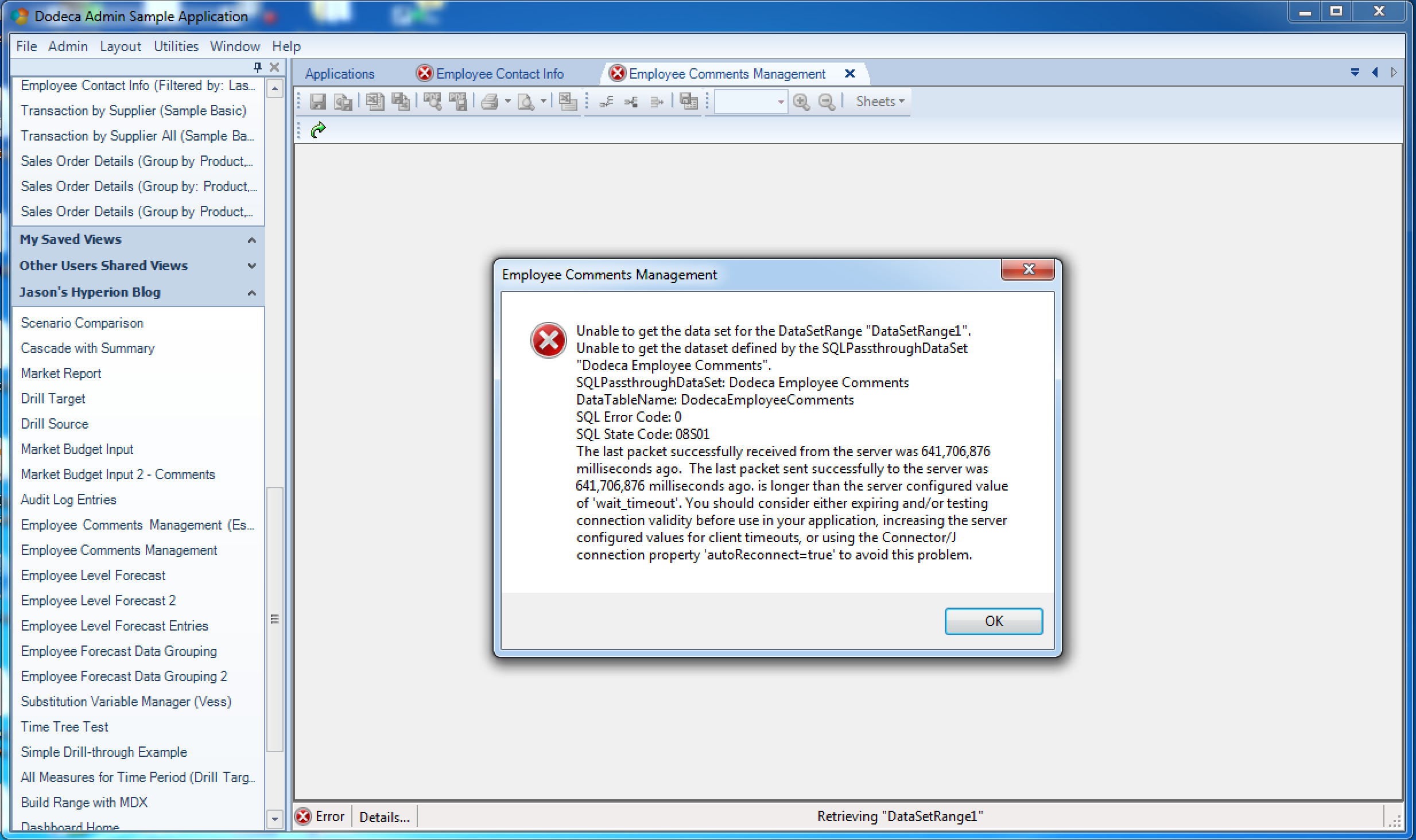
Dodeca error dialog reporting a timed out MySQL JNDI connection

MySQL connection timeout when configured with JNDI

Helpfully enough (or perhaps unhelpfully) the error message itself reports that perhaps the autoReconnect=true setting would be of help. I’ve actually used that setting in the past and it seemed to help things out. But as it turns out, that setting is deprecated and should not be used. There are some alternative techniques that can/should be used to ensure the program gets a valid connection back.

One common technique is to specify a “validation query”. This is often something like SELECT 1 or SELECT 1 FROM DUAL depending on the particular database technology being used. You can use SELECT 1 for MySQL. What this essentially means is that before returning a connection via JNDI to the Java servlet to do things with, the connection pool manager is going to run the validation query to ensure that it is indeed a valid connection (able to connect, doesn’t error out, and so on.

Interestingly enough, MySQL in particular has added an optimization for this use case such that you can give it a sort of fake query (code: /* ping */) and it’s slightly more optimized than the overhead involved with a SELECT 1.

Together with this optimized test query, some additional attributes on the JNDI configuration (testWhileIdle, testOnBorrow, testOnReturn, and removedAbandoned, I’ve updated the overall JNDI configuration and it seems to be much more robust. Here’s the new connection JNDI code from my Tomcat context.xml:


<Resource name="jdbc/dodeca_sample" auth="Container" type="javax.sql.DataSource" username="dodeca" password="password" driverClassName="com.mysql.jdbc.Driver" url="jdbc:mysql://localhost/dodeca_sample?noDatetimeStringSync=true" maxActive="100" maxIdle="30" maxWait="10000" removeAbandoned="true" removeAbandonedTimeout="20" logAbandoned="true" validationQuery="/* ping */" testWhileIdle="true" testOnBorrow="true" testOnReturn="false" />
<ResourceLink name="jdbc/dodeca_sample" global="jdbc/dodeca_sample" type="javax.sql.DataSource"/>

Dodeca Zebra Striping with WBS Example

I wanted to punch up a Dodeca view the other day by putting a little zebra striping on some relational data. Although having built-in support for this is on my wishlist, for now a simple workbook script (WBS) gets the job done. This is also alternatively called “greenbar”… depending on what decade you were born in.

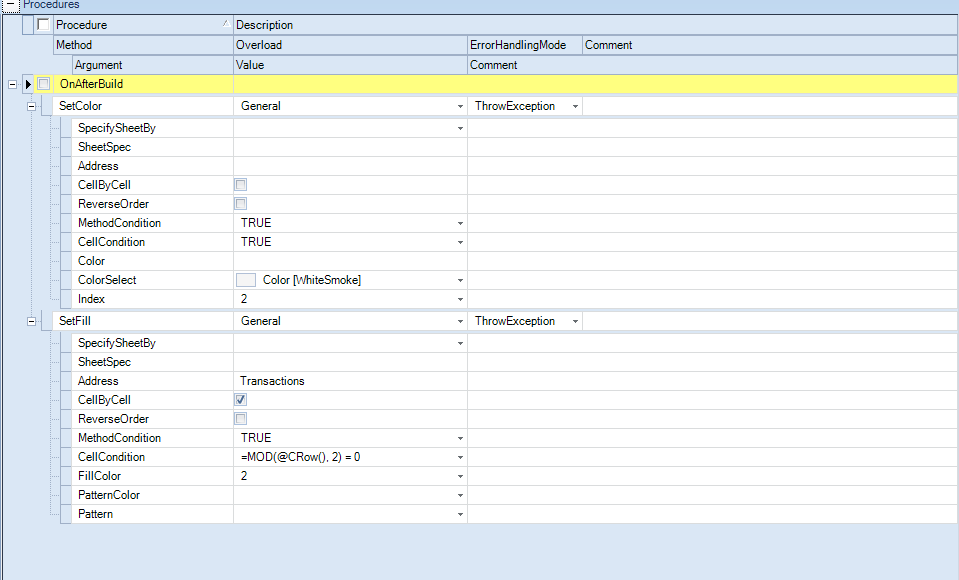
The technique itself is pretty simple. You can accomplish this in a few ways in Dodeca (as with everything), so here’s one way to go. First, when the view is opened, we have a workbook script to set a color index (that’s the first step in the following screenshot). In this case I am setting a very light grey to be color Index 2.

In the next step (the one that actually does the striping), I have defined a simple method that applies to a range named “Address” and just paint every other row depending on if it’s even or not. I’m just using the formula =MOD(@CRow(), 2) = 0, which is a normal Excel function (modulus), and a workbook script function (@CRow()) that returns the current row number being processed. If it’s even, then the cell should be painted. If not, nothing happens. So if you wanted two different colors you’d just add a new color set step and a new SetFill method that applied to odd rows.

Here’s a screenshot of the full WBS:

Screenshot of Dodeca Workbook Script editor showing how to implement a zebra striping technique

Dodeca WBS Zebra Striping Example

Interesting Time Period Conversion with Drillbridge/PBCS

I recently helped a customer with their Drillbridge installation/configuration for PBCS that had an interesting time period conversion issue I wanted to write about.

Drillbridge helps convert a given POV into a SQL query, webpage link, MDX query, or whatever you want (such as with a custom plugin). Out of the box, Drillbridge contains a number of commonly-used convenience functions for easily converting months to numbers (as well as other functions). You can do this in SQL too but it seems to almost always be a little “cleaner” to let Drillbridge do it for you, especially when it comes to upper-level drill-through.

Interestingly enough, a client has an interesting but not incredibly uncommon fiscal calendar where February is actually period 1,  March is 2, and so on. In this calendar, January is actually period 12. But the Drillbridge calendar conversion functions usually return the common month numbers. What to do? Just adjust the expression a little to check for January specifically, otherwise convert the month and subtract one. For example:


SELECT 1 WHERE FROM DUAL WHERE
PERIOD IN ({{"name":"Period","expression":"#Period == 'Jan' ? 12 : #monthAbbreviationToDigit(#Period) - 1","drillToBottom":true,"sampleValue":"Q1","quoteMembers":false,"suppressParentheses":true,"overflow":"","overflowAt":0,"flags":""}})

There are a few variant methods to handle this, but this one is pretty straightforward and clean. This token actually also handles upper level drill (such as from member Q1, Q2, and so on), so the query predicate to use is a SQL IN clause, to accommodate multiple values.

Now when we drill on member January, we get this test query:


SELECT 1 WHERE FROM DUAL WHERE
PERIOD IN (12)

And if we drill on Q1, for example, we get this:


SELECT 1 WHERE FROM DUAL WHERE
PERIOD IN (1, 2, 3)

You might have been expecting to see 12, 1, 2 there but it’s actually right since Q1 contains February, March, and April – so everything is mapping as expected.

I’ve been pretty happy over the years with how the original Drillbridge expression/token concept has been able to accommodate some tricky use cases, although this one is relatively straightforward. It’s also nice to be able to write a bit of a “pure” query that doesn’t have to join against a calendar table just to get the right dates. This is just one of the things that makes Drillbridge, in my opinion, a true turnkey drill-through solution.

Small update of Hyperion Parent Inferrer to 1.0.2

Over the years I have developed a fairly robust set of Java libraries that help me work with and enhance Essbase/Hyperion functionality. One of those seemingly trivial libraries is the “Hyperion Parent Inferrer”. It’s a Java library/command-line program that can quickly parse an indented file or String and infer what the parents of members are. In the world of programming it can be nice to just have a clean hierarchy instead of fiddling around with parents/children and other things.

While the library typically processes files, I added some new functionality that I needed helps process a String into a map that can easily lookup children of parents. The updated library is on the Hyperion Parent Inferrer GitHub page. You can also find some background on the library on the README file. You might also want to check an earlier blog post on the library, if that’s your thing.

Webinar Tomorrow: One Stop Data Shop with Dodeca

I just wanted to plug a webinar that I am conducting tomorrow on Dodeca. I’m excited to do this webinar for a few reasons. Usually on our monthly webinar series we look at a specific feature and do a technical walkthrough. The focus of this webinar is a little different, though. This is more of a case study looking at how a business has a lot of existing processes and reports built around Essbase and the Excel add-in, but needs something more sophisticated to handle their needs, including:

  • Using Dodeca to build views based on existing Excel sheets that need to fetch data for multiple tabs and multiple data sources in one fell swoop
  • Facilitate user input directly to Essbase with commentary
  • Combine Essbase and relational data in a single view (and save user’s a trip to a tertiary system!)
  • Drill-through in Dodeca: not just from Essbase to relational but Essbase to Essbase or relational to relational
  • Batch reporting

Having consulted in the Hyperion/Essbase world for many years I can easily say that there were countless organizations with sophisticated and complicated (but tried and true) Excel/Essbase-based processes that would greatly benefit from a tool that helped automate, manage, and control things. So that’s exactly what I hope to convey tomorrow during the webinar. If you’d like to attend, please register and I’ll look forward to showing you Dodeca and taking your questions!

New Substitution Variable Methods/CLI in PBJ

Just a few additions to the PBJ (PBCS REST API Java Library) regarding substitution variables. All of the new functionality is added to the PbcsApplication interface, for now. Since variables can exist in a specific plan type, it may make sense in the future to add a new interface/implementation that models a specific plan type. Anyway, here are the four new methods for now:


	/**
	 * Gets all substitution variables in the application
	 * 
	 * @return a list of the substitution variables, an empty list if there are
	 *         none
	 */
	public Set<SubstitutionVariable> getSubstitutionVariables();

	/**
	 * Fetch a substitution variable with a particular name from this
	 * application
	 * 
	 * @param name the name of the variable to fetch
	 * @return the variable object, if it exists
	 * @throws PbcsNoSuchVariableException if the variable does not exist
	 */
	public SubstitutionVariable getSubstitutionVariable(String name);

	/**
	 * Update a set of substitution variables. This does not replace all of the
	 * variables in the application, it just updates the ones that have been
	 * specified in the collection (contrary to what the REST API docs seem to
	 * imply)
	 * 
	 * @param variables the variables to update
	 */
	public void updateSubstitutionVariables(Collection<SubstitutionVariable> variables);

	/**
	 * Convenience method to update a single substitution variable value.
	 * 
	 * @param name the name of the variable
	 * @param value the value of the variable
	 */
	public void updateSubstitutionVariable(String name, String value);

A few things to note:

  • The getSubstitutionVariables method returns a Set<SubstitutionVariable>, as opposed to a List. Since a variable should be unique with respect to its combination of plan type, name, and value, a Set makes a little more sense here because the ordering implied by a List is irrelevant
  • All methods work with/return a SubstitutionVariable object. This is a new POJO class with three fields: planType, name, and value.
  • You can fetch just a single substitution variable by name as a convenience method. Although there is a technically a specific REST API endpoint for doing so, right now it just calls the other method and filters it.
  • You can update a set of variables
  • As a convenience, you can update a single variable/value for all plan types using the updateSubstitutionVariable(String name, String value) method.

The PBJ CLI (an “über” JAR that is runnable an implements a basic CLI to PBCS) has also gotten a couple of updates to reflect the new capabilities in the library. For example, you can quickly list all variables in an app:

java -jar pbj-pbcs-client-1.0.4-jar --conn-properties pbcs-client.properties list-variables --application=Vision

And get a list back:

ALL,NextPd,FY15
ALL,CurrPd,FY14

And as an added bonus, you can even provide your own format string if you want. This might help for people doing automation and need to get the data into a particular format with having to do some weird batch/shell string tweaks:

java -jar pbj-pbcs-client-1.0.4-jar --conn-properties pbcs-client.properties list-variables --application=Vision --format=%s|%s|%s%n
ALL|NextPd|FY15
ALL|CurrPd|FY14

All For Now

These latest updates are in the 1.0.4 branch of the PBJ GitHub repository. You can clone it and build your own copy of the library and runnable CLI JAR (if you’re so inclined) by checking that out. Eventually this branch will be merged into the master, pending more testing.

Understanding the Outline Extractor Relational Extraction Tables

I was going to do a nice in-depth post to follow up on my discussion of the relational cache outline extraction method/improvements on the Next Generation Outline Extractor, but someone already beat me to the punch. It turns out that the tool’s primary author, Tim Tow, blogged about the technique and the tables for ODTUG a couple of years back.

I’ll just add on one thing that I wanted to highlight, though: the general technique behind most relational extractions from an Essbase outline is to generate a single table, with such common columns as PARENT, CHILD, ALIAS, UDA, STORAGE, CONSOLIDATION, and so on. If you think about this, it tends to imply a number of limitations that might make this technique unfeasible for you:

  1. The table can only hold one extraction at a time
  2. You can only get the member name and a certain alias table alias at a time
  3. The columns in the table are variable based on the attribute dimensions that may be associated with the dimension
  4. More than one UDA: ¯\_(ツ)_/¯

Since the relational cache extraction method was designed for robust, flexible, and quick use with Dodeca, it is structured a little differently than traditional extracts. The additional aliases, attribute associations, and UDAs are all in separate tables, allowing for arbitrary and complete extractions of such data (in tables CACHED_OUTLINE_MEMBER_ALIASESCACHED_OUTLINE_MEMBER_ATTRIBS, and CACHED_OUTLINE_MEMBER_UDAS respectively).

Additionally, each version of an outline is extracted and given a unique ID as well, meaning that you can extract an outline over and over again to the same tables without having to necessarily clear the table beforehand. This again stands in contrast to the typical extraction format that is essentially one extraction in a table at a time (although if you choose to then merge that in to a separate table with a unique ID, you can).

In any case, I keep finding myself surprised at just how many people are using the relational extraction technique as part of their automation and day to day solutions, including techniques related to automated outline change comparisons, quasi-DRM solutions, and shuffling data around the enterprise for consumption in other solutions.